Your calendar is full, but your work still isn’t done
You block off the day with meetings, calls, and “quick check-ins,” then look up at 5:30 and realize the real work hasn’t moved. The calendar feels productive because it’s full, but a full calendar often just means you were available, not effective. The frustrating part is that you did show up and you did respond—yet the projects that require thinking, writing, or decisions are still waiting.
This is a normal pattern in roles where other people’s needs arrive faster than your own priorities. The hidden cost is that focused work gets pushed into early mornings, late nights, or weekends, which makes the next week even harder. If your calendar only reflects what others can claim, it will stay packed while your most important work stays unfinished.
Figure out what your calendar is actually for
On most teams, the calendar ends up serving two jobs at once: it’s a commitment tracker (when you must be somewhere) and a capacity signal (when you’re available). When those get mixed, “available” quietly turns into “up for grabs,” and your week fills itself. A useful calendar isn’t a record of activity; it’s a tool for making promises you can keep without sacrificing your core work.
Try a simple test: if everything on your calendar happened exactly as planned, would your most important outcomes still move forward? If the answer is no, the calendar is missing the work only you can do. That doesn’t mean scheduling every task minute-by-minute. It means deciding what the calendar should protect: decisions, deep work, recovery, and the meetings that genuinely unblock others.
The constraint is real: you can’t protect everything. When you choose what the calendar is for, you’re also choosing what you’ll say no to—or what will wait.
Stop scheduling tasks like meetings—use time bands instead
You’ve probably tried putting “write proposal” at 2:00 and “review budget” at 3:00, then watched the day ignore your plan. Tasks don’t behave like meetings. They expand, shrink, or change once you start, and they’re the first thing sacrificed when anything runs long. The result is a calendar that looks precise but functions like wishful thinking, which is why it starts feeling pointless to block time at all.
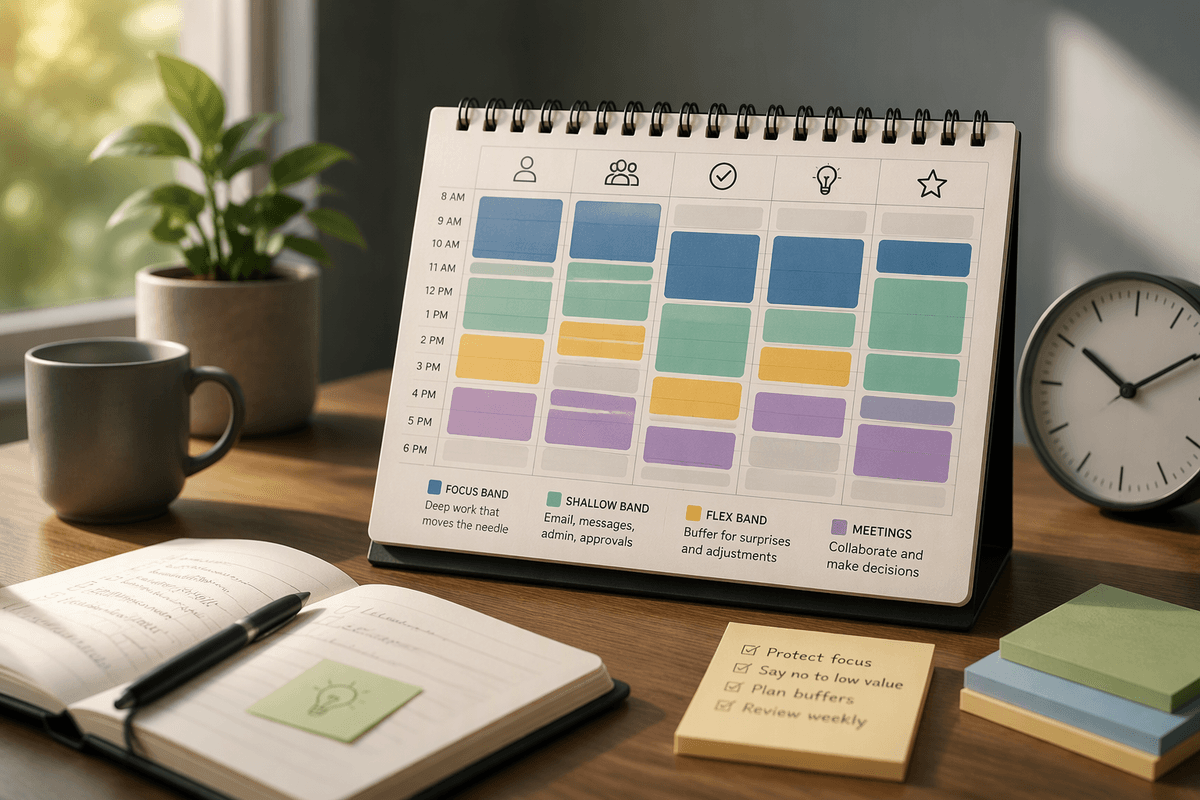
Use time bands instead: wider blocks with a purpose, not a script. For example, a 90-minute “Focus band” for the one project that matters most, a “Shallow band” for email, approvals, and admin, and a “Flex band” for the surprises you know will show up. Keep the bands consistent across the week so they become a default. The trade-off is you’ll have to renegotiate expectations—people may not get instant responses—but you’ll get more finished work and fewer late-night catch-ups.
Protect focus without building an impossible perfect day

You can protect focus without turning your calendar into a brittle masterpiece. The tell is when you start stacking back-to-back “focus bands” and leaving no air for reality—handoffs run long, someone pings you with an urgent question, a kid gets sick, your brain fades. Then you “fail” the plan and decide blocking time doesn’t work, when the real issue was zero slack.
Build protection with buffers, not perfection. Keep one strong focus band most days, then surround it with smaller guardrails: a 15-minute landing zone before and after meetings, a short recovery slot after heavy conversations, and a daily flex band you expect to spend. Treat email and chat like a shallow-work band with edges, not something that leaks into everything. The cost is you’ll look less instantly available, and you may need to reset response-time expectations—but you’ll regain control of when your best work happens.
Make meetings earn their spot on your calendar
Most calendars get overbooked one “small” meeting at a time. A 15-minute sync looks harmless until it creates a gap too short for focus, then another meeting lands in the gap, and your day turns into fragments. The fix isn’t to ban meetings; it’s to stop treating every request like it automatically qualifies as a commitment.
Before you accept or schedule, make the meeting earn its slot with a few basic requirements: a clear purpose, the decision or output it should produce, and the smallest set of people needed to get that outcome. If the goal is status, ask for it async first. If the topic is complex, require a short pre-read so the time is used to decide, not to download context. Default to 25 or 50 minutes, not 30 or 60, and protect your focus band by offering specific windows for collaboration rather than “anytime.”
This can feel awkward at first, and it may cost you some social ease. You’ll sometimes be the person asking for an agenda or declining a meeting that others accept by reflex. The payoff is fewer performative conversations and more time for the work those conversations are supposed to support.
Use weekly and daily reviews to keep the calendar honest

You can set up time bands and meeting rules and still end up overbooked if you never reconcile the calendar with reality. A weekly review is where you decide what the week is actually trying to accomplish, before requests fill the empty space. Pick 20–30 minutes, look at the next two weeks, and make three moves: place one or two focus bands on the days that have the highest leverage work, add a flex band where surprises usually land, and preempt the obvious collisions (deadlines that fall after travel, heavy meeting days with no thinking time). If something can’t fit without squeezing your core work, it’s a negotiation problem—not a scheduling problem.
A daily review is shorter and blunter: “What must happen today, what can slide, and where is the slack?” If the day is already packed, don’t reshuffle everything. Protect the single focus band, then downgrade the rest into a short list you’ll pull from when meetings end early or plans change.
A calmer calendar is one you can trust tomorrow
You’ll know the system is working when you stop “winning” the day by filling it. A calm calendar has visible space, and that space has a job: it absorbs overruns, lets you think, and gives you room to recover so tomorrow isn’t already compromised. If an afternoon is back-to-back, treat that as a risk, not a badge—add buffers or move the least essential meeting instead of hoping you’ll power through.
Trust comes from consistency. Keep your focus band sacred, keep meetings constrained, and keep a flex band that you actually spend. The hard part is living with the discomfort of not looking instantly available. The payoff is a calendar that predicts your week instead of lying about it.