A day in the life with Raycast
You sit down, fingers already on the keyboard, and the day is a loop of small asks: open a project, find a file, paste a snippet, start a timer, check a calendar slot, message someone back. With Raycast, those detours can collapse into a single command bar. You hit a shortcut, type a few letters, and jump straight to an app, a recent document, a browser tab, or a quick action without hunting through menus or the Dock.
The catch is that it only feels “instant” after you commit to it. Expect an upfront cost in habit change: you’ll tweak a few hotkeys, decide what should show up first, and ignore features you don’t use. If you bounce between mouse and keyboard or switch Macs often, the setup and muscle memory can take longer to pay back.
What Raycast actually replaces on your desktop
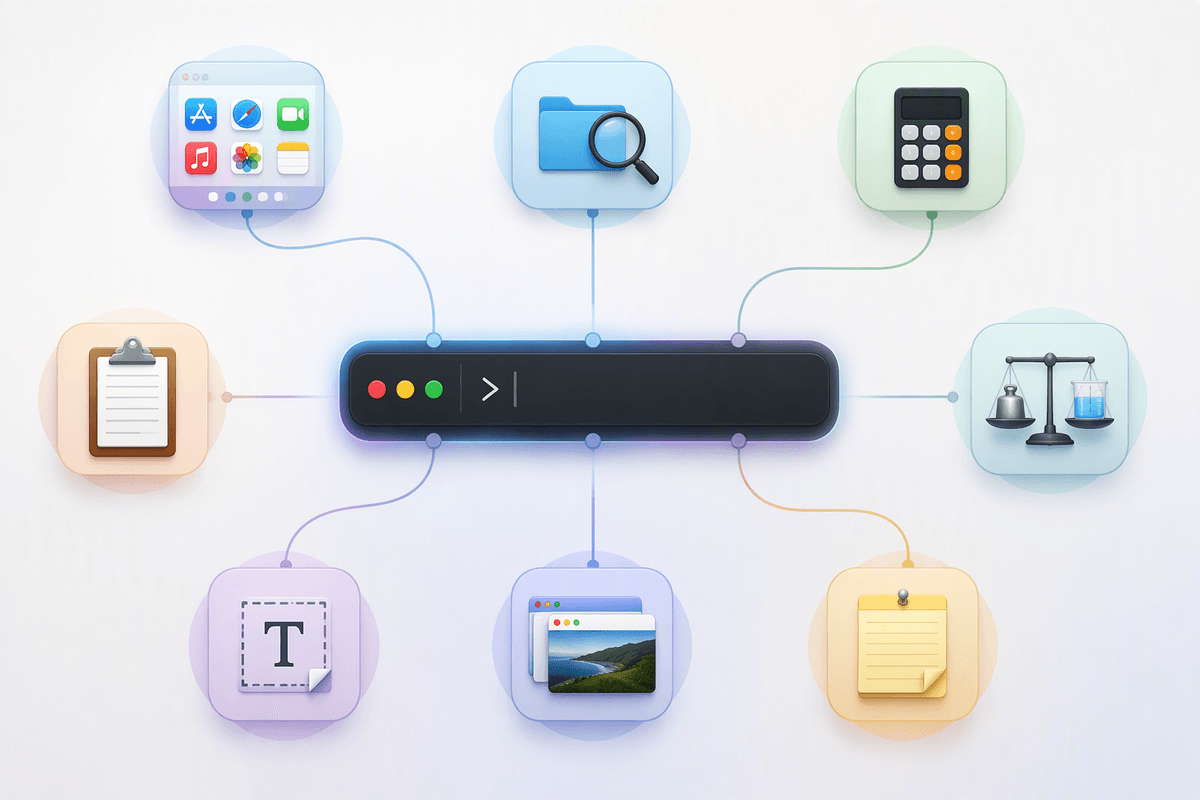
On a typical Mac, Raycast overlaps with Spotlight first: launching apps, opening files, doing quick calculations, and converting units. It also competes with the small “glue” tools you may have installed over time: a clipboard manager, a snippet expander, a lightweight window switcher, and sometimes a separate app for quick notes or reminders. If you’ve used Alfred, the difference isn’t that Raycast invents keyboard search, it’s that more actions live in the same command bar, with consistent search and preview behavior.
What it doesn’t replace is important. It won’t make slow apps faster, and it can’t fix messy file naming. Some workflows still require the mouse (design tools, complex spreadsheets), and certain power features depend on extensions that can break or lag behind app changes. For many people, Raycast’s real value is reducing context switching, not eliminating it.
The learning curve: shortcuts, habits, and setup time
The first week with Raycast usually feels like you’re slower, not faster. You’ll keep reaching for Spotlight out of reflex, and the default shortcut may conflict with something you already use. Most people get past that by picking one “anchor” habit (app launch, file search, or clipboard history) and forcing themselves to do it through Raycast until it sticks. If you try to learn window management, snippets, quicklinks, and automation all at once, the command palette becomes noise.
Setup time is mostly decision time. You’ll spend 20–60 minutes choosing hotkeys, pruning commands you’ll never use, and installing only the extensions tied to apps you touch daily. The practical cost is ongoing: every extension adds another thing to maintain, and your muscle memory can break when an app updates, a permission changes, or a command moves behind a Pro feature. A minimal setup keeps the learning curve reasonable and the wins easier to notice.
Everyday use cases that save minutes (or don’t)

The wins show up in the boring, repeated moments: switching projects, jumping between the same five folders, pasting the same two snippets, and pulling up the last thing you copied. Raycast’s clipboard history and snippets can remove a lot of “where did I put that?” friction, especially if you write similar emails, code, or meeting notes all day. Quicklinks also matter more than they sound; a saved path to “current sprint doc” or “invoices folder” is the kind of shortcut you feel ten times a day. When those actions live behind one hotkey, you stop interrupting yourself to navigate.
The misses are just as predictable. If you mainly open apps once and live in a browser, Raycast can turn into a prettier Spotlight with extra steps. File search only saves time if your files are named sensibly and stored consistently. And for tasks that require context—editing a slide layout, reviewing a spreadsheet, cleaning up a design—Raycast can launch the work, but it can’t reduce the time inside it. The payoff depends on how often you repeat small actions, not how “power user” you feel.
Extensions and automation: when Raycast becomes a platform
You feel the shift from “launcher” to “platform” the first time an extension replaces a whole mini-workflow: search and join a video call from your calendar, create a task with the right project tag, look up a pull request, or fire off a saved query in a tool you live in all day. For developers, even simple actions like switching Git branches, running scripts, or copying formatted issue links add up because they remove the micro-decisions of where to click next. For students and office work, the value is usually more mundane: consistent commands for notes, timers, and to-dos across different apps.
Automation is where the trade-offs show. Extensions are maintained by Raycast or third parties, and they can break when APIs change, permissions reset, or an app updates its authentication flow. Complex setups also cost attention: you’ll spend time tuning scripts, managing environment variables, and debugging why a command silently fails. A practical approach is to install two or three extensions tied to your daily core apps, then only add more when you can name the exact minutes they’ll save.
Pricing, privacy, and reliability trade-offs
At some point you run into the line between “nice” and “paid.” Raycast works well for basic launching, search, clipboard history, and a handful of extensions, but Pro features tend to be the ones that smooth daily friction: syncing settings across Macs, richer AI-assisted commands, and deeper integrations depending on what you use. The cost question is simple: if you live on one Mac and your workflow is stable, free may be enough; if you switch machines, consult across projects, or rely on consistent snippets and hotkeys everywhere, paying is easier to justify.
Privacy and reliability are the quieter trade-offs. A command bar can see a lot: what you search, what you copy, what apps you open, and which services you connect. Extensions may request permissions and pass data through third-party APIs, so you need to be picky about what you install and what you allow. Reliability is also uneven: core features are steady, but any workflow built on community extensions or external services carries downtime, token expirations, and occasional breakage after app updates.
So, is it worth it for you? A quick decision guide
You’ll know Raycast is worth it if your day is made of repeatable “micro-tasks” you can name: open the same set of apps and folders, paste the same fragments, search the same docs, trigger the same two or three actions in your core tools. If you mostly live in one browser tab set, use the mouse heavily, or hate maintaining plugins, the gains can be marginal and the breakage risk will annoy you.
A practical starting point: remap the hotkey, enable clipboard history, create 5–10 snippets, add 3 quicklinks, and install only one extension tied to a daily app. Give it a week. If you’re not reaching for Spotlight less by day five, stop and reassess before paying for Pro.