Start With the Quick Settings Rotation Toggle
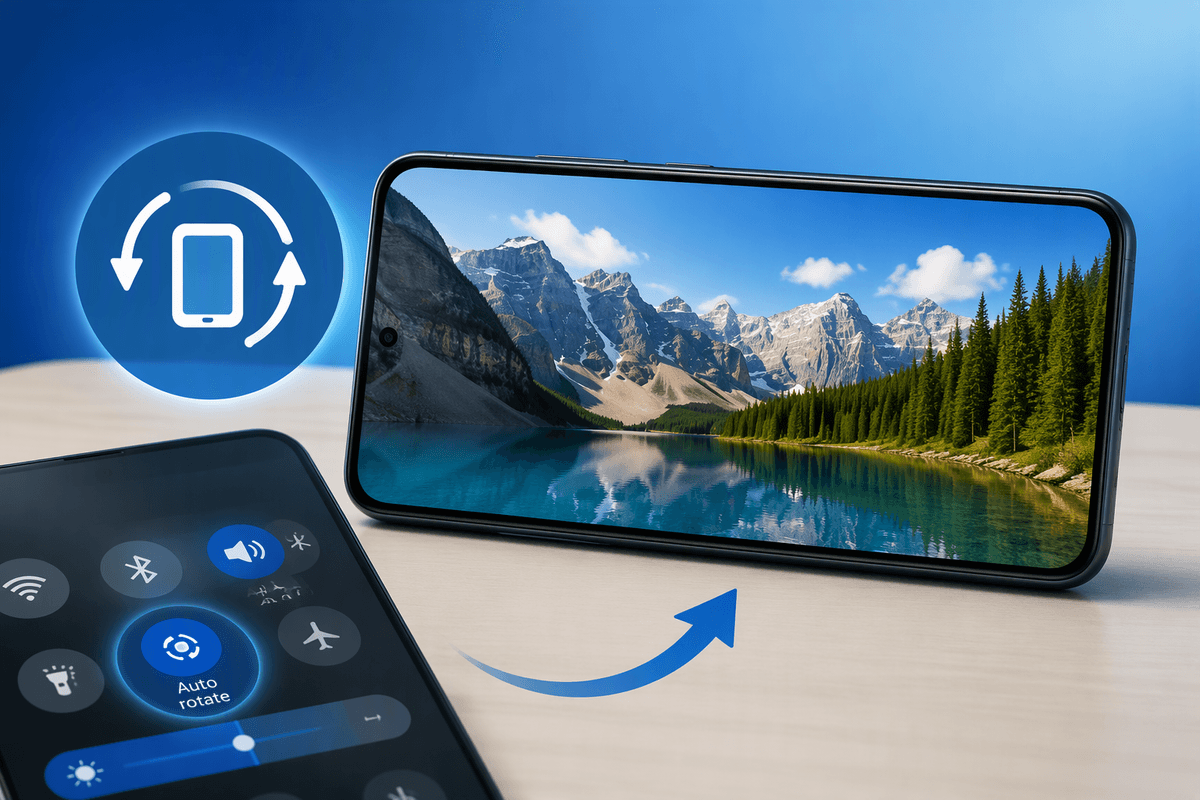
When a Galaxy phone stays in portrait mode, start with the Quick Settings panel. Swipe down from the top of the screen, then swipe down again to expand all controls. Look for the tile labeled “Auto rotate.” If it says “Portrait” or “Landscape,” tap it to restore automatic rotation. The icon may be on another panel, so swipe sideways or tap the plus button to find it.
Test the change in an app that normally supports both orientations, such as Samsung Internet or Gallery. Some apps are designed to remain in portrait mode, so a working setting will not force every screen to rotate. Also check that you are not touching the display in a way that triggers an accidental panel change. If Auto rotate is enabled but nothing moves, continue by checking whether the problem is limited to one app.
Check Whether Only One App Is Affected
Open a second app that normally rotates, such as Samsung Internet, Gallery, or YouTube, and turn the phone sideways. If those apps switch correctly while one app remains upright, the phone’s rotation feature is working. The restriction is probably built into that app, limited to a particular screen, or caused by a temporary app error. Some games, video players, banking apps, and login pages intentionally lock their orientation.
Check the affected app’s own settings for options such as screen orientation, full-screen mode, or rotation lock. Then close the app completely from the Recent apps screen and reopen it. If the problem continues, update the app through the Galaxy Store or Play Store, or clear its cache from Settings > Apps > the app name > Storage > Clear cache. Avoid choosing Clear data unless you are prepared to sign in again or lose locally stored settings. When several unrelated apps refuse to rotate, the cause is less likely to be app-specific, so continue with the phone’s home screen and accessibility settings.
Review Home Screen and Accessibility Settings
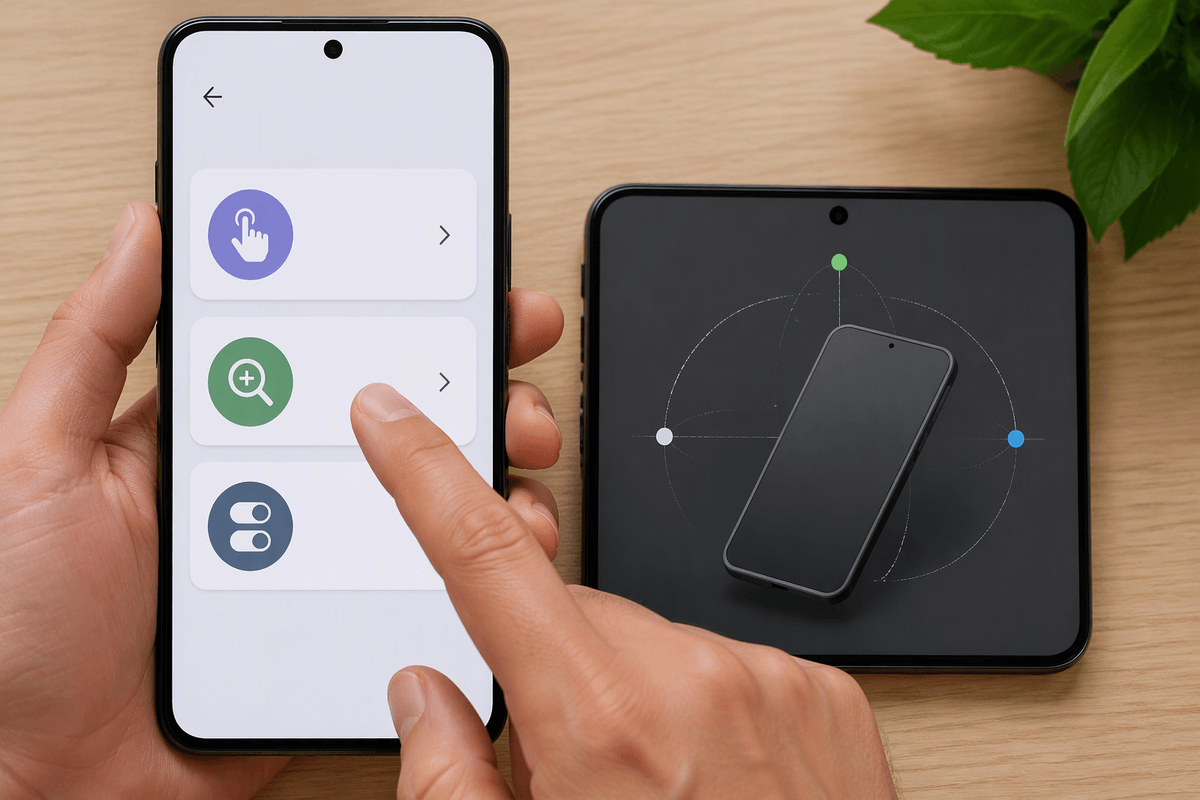
If multiple apps stay in portrait mode, check whether the home screen is being treated differently from the apps. On many Galaxy phones, touch and hold an empty area of the Home screen, tap Settings, and look for an option such as Rotate to landscape mode. Turn it on if you want the Home screen to rotate. This setting usually affects the launcher only; it does not replace the main Auto rotate control in Quick Settings.
Accessibility features can also interfere with normal testing. Open Settings, select Accessibility, and review options related to interaction controls, magnification, or switch access. These features do not usually disable rotation directly, but they can change how the phone responds to movement or touch. Also check Display settings for screen zoom or simplified layout options that may make the interface appear unchanged. After adjusting anything, return to Auto rotate, open Gallery or Samsung Internet, and test again. If the Home screen and several apps still remain fixed, the problem is probably not a launcher preference and may require a restart or sensor check.
Restart the Phone and Test Its Sensors
A restart can clear a temporary system process that is preventing the phone from responding to movement. Press and hold the Side and Volume down buttons, tap Restart, and wait for the Galaxy phone to boot fully. Do not test rotation while apps are still loading. Open Gallery or Samsung Internet, turn the phone sideways, and give the screen a moment to respond. If rotation works after restarting, the issue was likely temporary rather than a failed sensor.
If the screen still stays fixed, check whether the phone detects movement at all. Open Samsung Members, select Support, then choose Phone diagnostics and run the available sensor or motion tests. Menu names can vary by Galaxy model and software version. You can also test the compass or motion response in a trusted diagnostic app, but avoid apps that request unnecessary permissions. If the motion test fails, or the phone recently suffered a drop, water exposure, or screen repair, hardware may be involved. A successful test points back toward software, settings, or an individual app rather than the accelerometer itself.
Install Updates Before Assuming Hardware Failure
Before treating a failed sensor test as proof of hardware damage, install any available system updates. Open Settings, tap Software update, then choose Download and install. Updates can correct problems in One UI, device services, or sensor handling, especially if rotation stopped after an app installation or recent system change. Keep the phone connected to Wi-Fi and charge it first, since the update may take several minutes and require a restart.
Also update Samsung system apps and commonly affected apps through the Galaxy Store and Play Store. Afterward, restart the phone and test rotation in Gallery or Samsung Internet rather than relying on one restricted app. An update will not repair a damaged accelerometer, loose internal connection, or moisture-related fault, and installing it may not help if the sensor diagnostic still fails. However, it is a low-risk step that can resolve software faults before you pay for service or reset the phone. If rotation remains unavailable across several apps after updating, move on to Safe Mode or repair troubleshooting.
Know When Safe Mode or Repair Is Necessary
Safe Mode helps determine whether a downloaded app is interfering with rotation. Press and hold the Side and Volume down buttons, touch and hold Power off, then tap Safe mode when it appears. On some Galaxy models, you can also restart the phone and hold Volume down while the Samsung logo appears. Test Gallery or Samsung Internet in Safe Mode. If rotation works there, a recently installed or updated app is the likely cause. Remove suspicious apps one at a time, starting with launchers, screen filters, automation tools, accessibility utilities, or overlay apps.
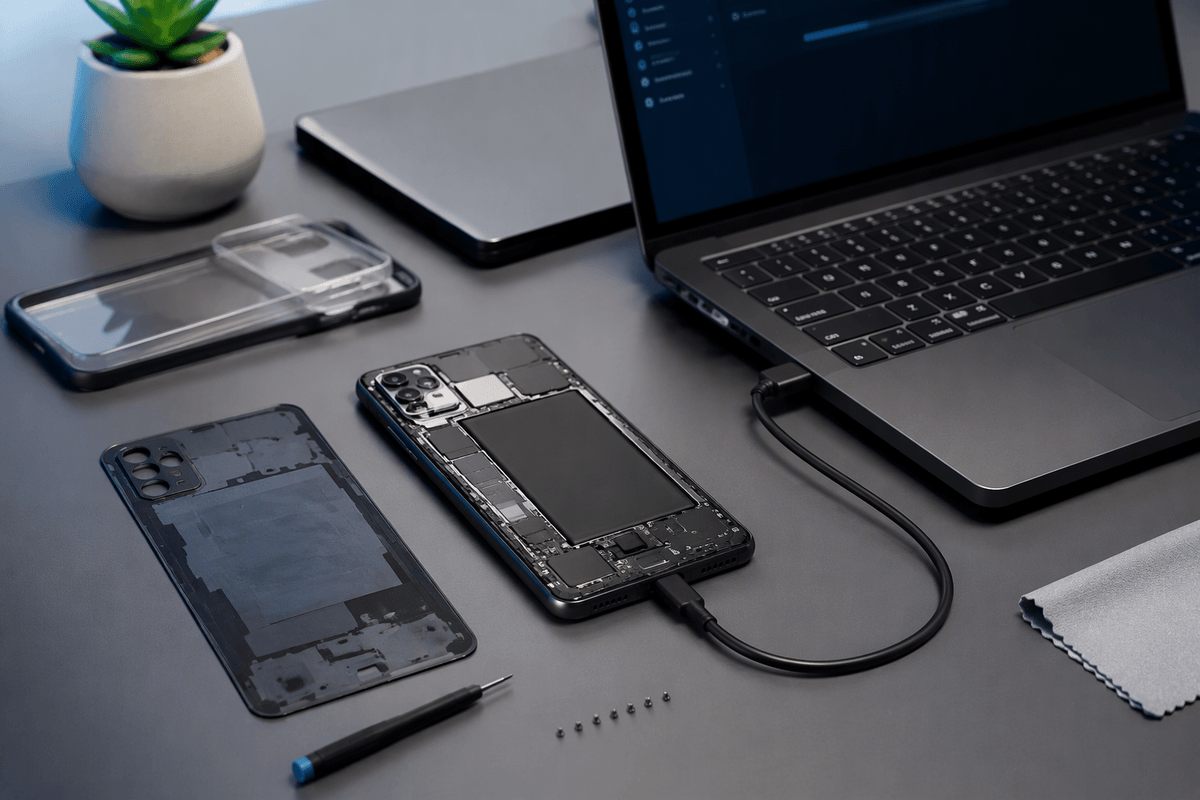
If the screen will not rotate even in Safe Mode, the cause is less likely to be a downloaded app. Confirm that Auto rotate is enabled, install pending updates, and run Samsung Members diagnostics once more. Arrange repair or contact Samsung support if motion tests fail, the phone was dropped or exposed to liquid, or rotation stopped after a screen replacement. Service may involve inspection, part replacement, or a fee if the device is out of warranty. Before handing it over, back up your data and remove any case or accessory that could be pressing against the phone.
Use the Fastest Fix Before Deeper Troubleshooting
When rotation stops, use the shortest test that matches the symptom. If every app stays upright, check Quick Settings first, then restart the phone and test Gallery or Samsung Internet. If only one app is affected, inspect that app’s orientation setting or update it instead of changing system settings. If rotation fails across apps after a restart, review updates and run the sensor diagnostic before considering repair.
This order avoids unnecessary resets, app data loss, and service costs. A factory reset should not be the first response, because it will not fix a damaged sensor and requires a complete backup. If Auto rotate is enabled, Safe Mode makes no difference, and motion diagnostics fail, stop repeating software fixes and arrange professional inspection. Otherwise, remove recently installed apps or wait for an app or system update to resolve the problem.