Why Outlook Leaves Messages Waiting
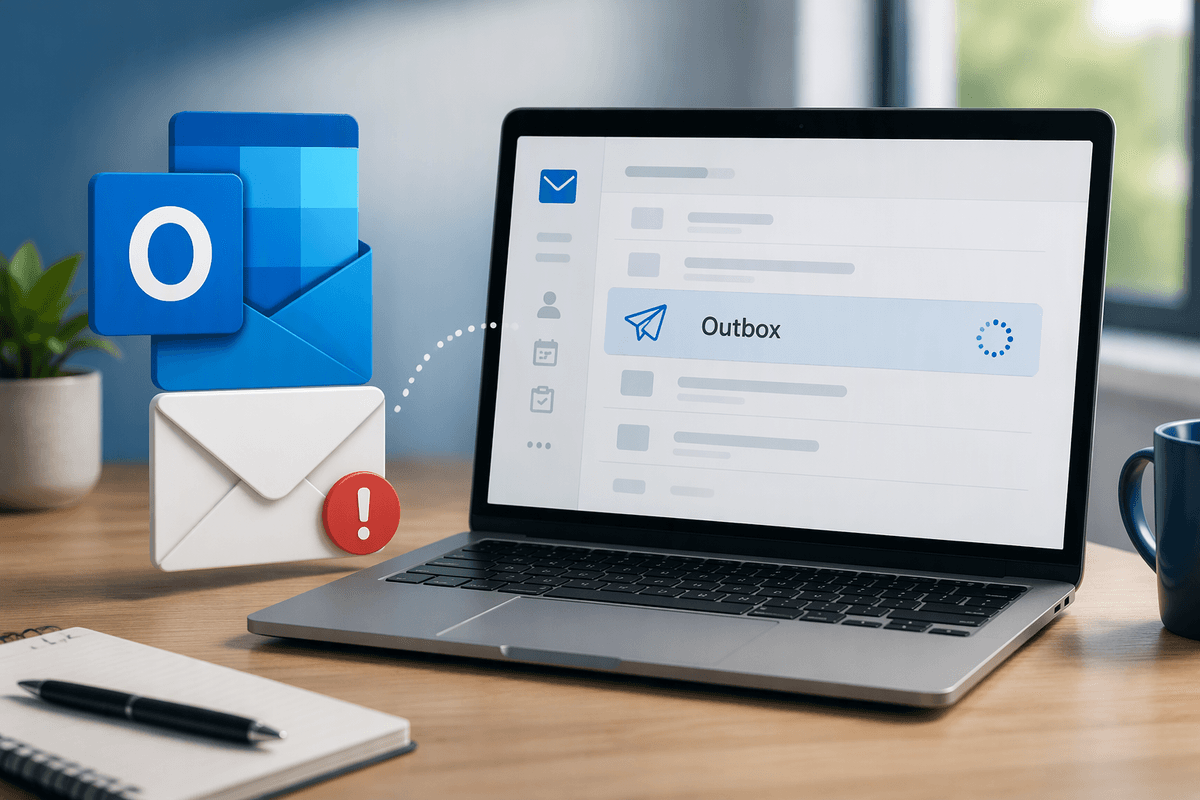
When an Outlook message remains in the Outbox, it usually means Outlook has accepted the message but has not completed the handoff to the mail server. The cause may be simple, such as Outlook being set to Work Offline or losing its connection, but it can also involve an account sign-in problem, a full mailbox, or a message with an attachment that takes too long to upload.
Sometimes one damaged message blocks newer messages behind it. A temporary sync error, an incorrect account setting, or a server outage can have the same effect. The safest approach is to identify whether Outlook is offline, whether the message is unusually large, and whether the account can send a small test email before making more disruptive changes.
Check Whether Outlook Is Working Offline
Start with the simplest possibility: Outlook may be set to work offline. In classic Outlook for Windows, look at the status bar near the bottom of the window. If it says “Working Offline” or “Disconnected,” Outlook is not currently handing messages to the mail server. Open the Send/Receive tab and select “Work Offline” to turn the setting off. The button should no longer appear selected, and the status should change to “Connected” or “Connected to Microsoft Exchange.”
If Outlook immediately returns to offline or disconnected status, check the internet connection and try opening a website in the same browser or computer. A brief network interruption can leave Outlook looking open while sending remains paused. Also check whether another account in Outlook shows a password prompt or connection warning. Do not repeatedly click Send while the connection is unstable; this can create duplicate messages once service returns. Give Outlook a minute to reconnect, then see whether the message leaves the Outbox before changing its contents or deleting it.
Look for Attachments or Messages That Are Too Large
A message with a large attachment can appear to be stuck even when Outlook is connected. Photos, videos, scanned documents, and several files compressed together may exceed the sending limit for your email account or take too long to upload. Open the message from the Outbox if Outlook allows it, then check the attachment size. Remove unnecessary files, compress them, or replace them with a shared file location. Keep in mind that the recipient’s mail system may impose a lower limit than your own account, so a message that looks acceptable in Outlook can still be rejected by the server.
After reducing the message, save it and allow Outlook time to send it rather than repeatedly selecting Send. If the message still will not move, create a new email and attach only a small file or no file at all. A small test message can show whether the attachment is the problem. If the test sends but the original does not, copy the text into the new message and add attachments one at a time. This also helps identify a damaged attachment or message that Outlook cannot process correctly.
Confirm the Account Can Actually Send Mail
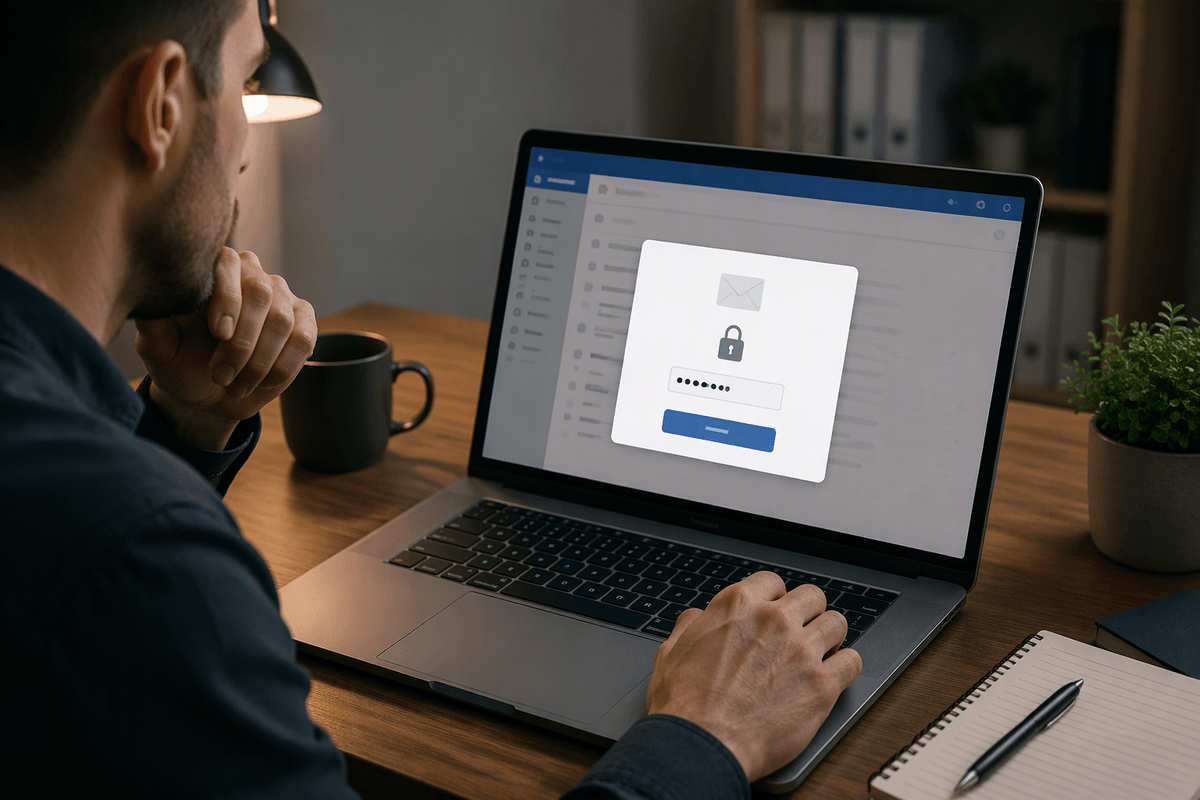
If a small test message also remains in the Outbox, the attachment is probably not the main problem. Confirm that the account itself is allowed to send mail. In Outlook, check whether the account shows a sign-in prompt, password warning, or repeated connection request. Re-enter the password only if you trust the prompt and know the account credentials. Work or school accounts may also require updated security approval, while personal accounts can be blocked after unusual sign-in activity or a password change.
Send the test message to yourself with a short subject and no attachment. If it sends successfully, the account and server connection are working, so the original message may be damaged or still too large. If it fails immediately, check whether the account’s mailbox is full, the sending limit has been reached, or the provider is rejecting authentication. Avoid deleting the account from Outlook as an early fix; removing it can discard locally stored settings and make recovery more difficult. Once the account sends the test successfully, return to the original message and try sending a freshly created copy.
Decide Whether the Problem Is Local or Server-Side
The pattern of the failure usually shows whether the problem is on your computer or with the mail service. If only one message remains in the Outbox while a new, plain-text test message sends normally, the cause is probably local to that message or Outlook itself. If every message stays queued, Outlook repeatedly asks for credentials, or several devices cannot send from the same account, suspect an account or server-side problem instead.
Compare what happens in Outlook with the account’s webmail service, if one is available. Send a short message there or check whether recent mail is syncing. Webmail works while Outlook does not usually points to a local connection, profile, or Outlook synchronization issue. If webmail also cannot send, look for a provider outage, mailbox limit, account restriction, or authentication problem. A server-side issue may require waiting or contacting the administrator, so avoid repeatedly editing the Outbox message. Record the exact error and when it occurred; that information can distinguish a temporary service failure from a problem limited to Outlook on one computer.
Try the Safest Fixes in the Right Order
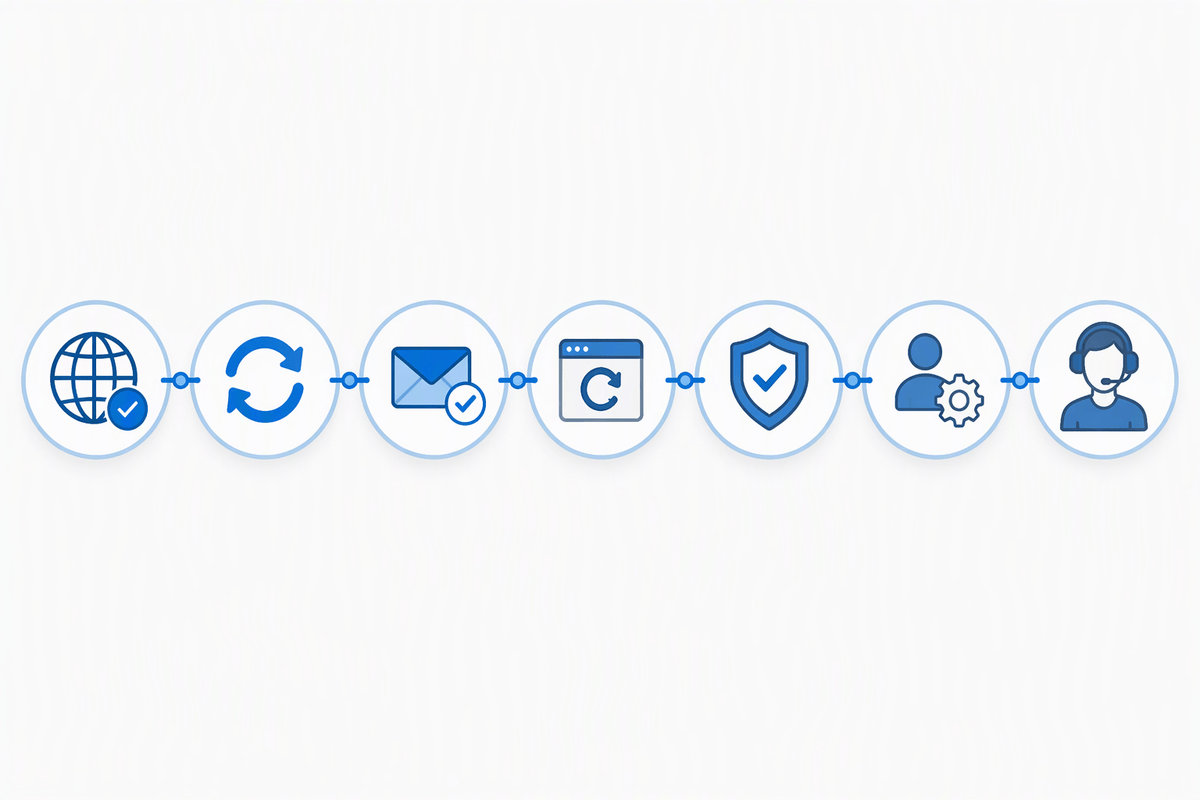
Once you know whether the problem is limited to Outlook or affects the account everywhere, use the least disruptive fix first. Confirm that Outlook is online, wait briefly for synchronization, and try sending a new message with no attachment. If that works, recreate the original message instead of repeatedly forcing the stuck copy. Copy the text into a new email, add attachments one at a time, and check that the correct account is selected in the From field.
If no messages send, close and reopen Outlook after saving any work, then try again. Avoid deleting the Outbox message until you have copied its contents or confirmed that it is safe to lose. If Outlook remains connected but sending still fails, updating the password or completing the account’s security prompt may resolve the issue. More involved steps, such as repairing the Outlook profile or removing and adding the account again, should come later because they can remove cached settings and require setup. When webmail also fails, stop changing Outlook and address the provider, mailbox, or administrator issue instead. The goal is to change one thing at a time so you can tell which fix actually restored sending.
Know When the Outbox Is Clear Again
Outlook is clear when the message disappears from the Outbox and appears in Sent Items, usually with a recent time shown. Check the recipient’s address and, if needed, confirm delivery by looking for the message in webmail or asking the recipient to verify it arrived. A brief delay is normal for large attachments or multiple accounts, so give synchronization a little time before assuming failure.
If the message remains in the Outbox, shows an error, or never appears in Sent Items, treat it as unsent. Copy its text and save any attachments before deleting it, then recreate the message and send a small test first. Do not rely on Outlook’s absence of an error alone; Sent Items and successful delivery are the practical confirmation that the message actually left the account.