Start With Gestures You Already Use
Most Windows users already perform the gestures that make faster navigation possible. A single click selects an item, a double-click opens it, and dragging moves files or highlights text. The useful improvement is not learning an entirely new system; it is noticing what these familiar actions can do in more places. For example, dragging a window by its title bar lets you reposition it, while dragging it to an edge can arrange it beside another window.
Start by slowing down just enough to test these actions in routine work. Try right-clicking files, folders, and empty desktop space to reveal relevant commands, and hold Ctrl while clicking to select separate items. These gestures save time because they reduce trips to menus and toolbars. They may feel less efficient on a small trackpad or crowded screen, so use them where the pointer can move comfortably and accurately.
Navigate Windows Faster With Familiar Buttons
The buttons on a window are useful navigation tools, not just controls for closing or minimizing an app. Click the taskbar icon of an open program to bring its window forward, then click the same icon again to minimize it when you need a clear view of the desktop. If several windows belong to one program, hover over its taskbar icon and choose the specific preview you want instead of cycling through every open window.
Use the Back and Forward buttons in File Explorer to retrace folders without reopening the navigation pane. The Up button moves you to the containing folder, which is often quicker than clicking through the address bar. In a browser, clicking the mouse wheel on a Back or Forward button can open that page in a new tab. You can also middle-click a taskbar thumbnail or folder link in supported apps to open another window. These actions depend on the application, and older programs may ignore them, so treat them as convenient shortcuts rather than universal commands.
Use the Scroll Wheel Beyond Scrolling
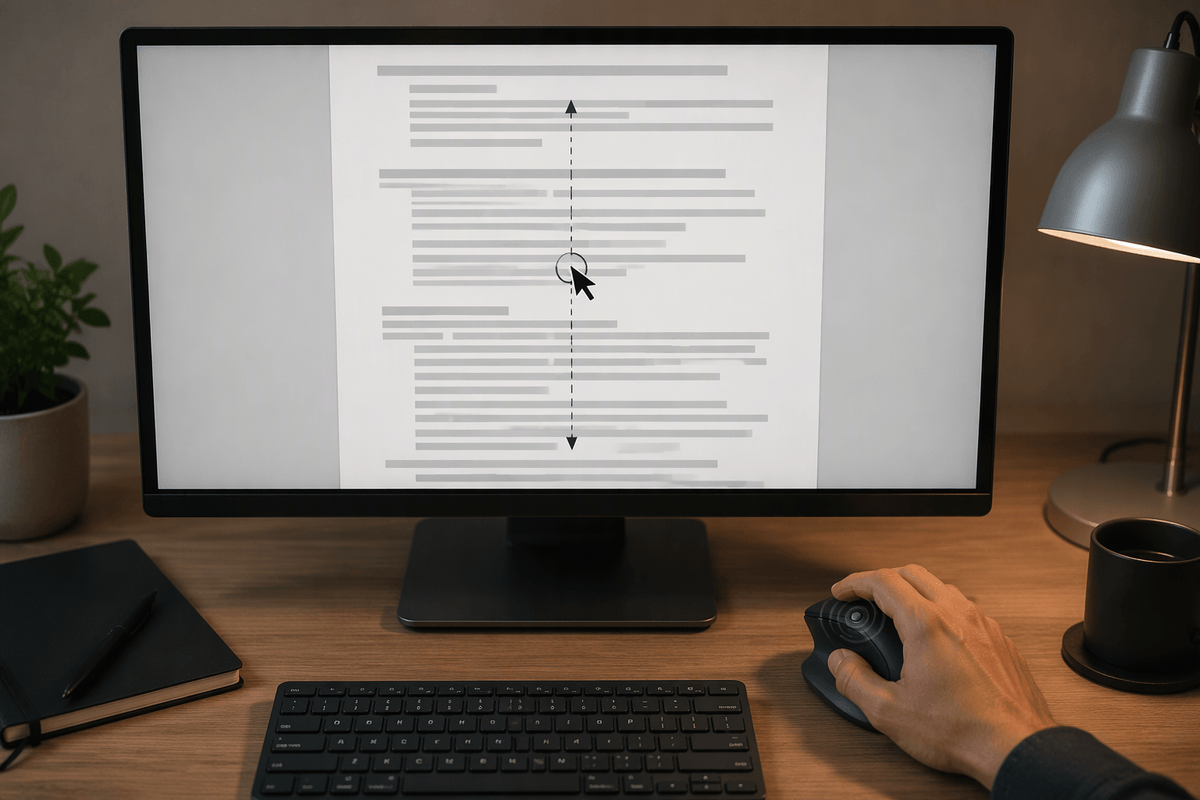
The scroll wheel can speed up navigation when you use it for more than moving through a page. In File Explorer, hold Ctrl while scrolling to change the size of icons, making it easier to compare files or fit more items into view. In many browsers and document windows, hold Shift while scrolling to move horizontally when a page or table is wider than the screen. This is often more controlled than dragging a small horizontal scrollbar.
The wheel also works as a middle button. Click it on a browser tab to close the tab without targeting its small close button, or click a link to open it in a new background tab. When a page is zoomed in, clicking the wheel and moving the mouse can activate auto-scroll; move the pointer slightly to control the direction and speed, then click again to stop. Auto-scroll is useful for long articles, but it can feel unpredictable until you practice it, and some applications do not support it. If your mouse wheel is stiff or overly sensitive, adjust its scrolling settings before relying on these gestures for precise work.
Drag, Select, and Move Without Extra Steps
Selecting several items does not require repeating the same click over and over. Hold Ctrl while clicking files, folders, or text to add separate items to your selection. Hold Shift while clicking to select a continuous range, such as every file between two points in a folder. In File Explorer, you can also drag from an empty area to draw a selection box around nearby items. Start outside an icon and release the button only after the intended items are highlighted.
Dragging becomes more useful when you combine it with modifier keys. Drag a file to another folder to move it, or hold Ctrl while dragging to create a copy instead. Holding Alt while dragging can create a shortcut in locations that support it. When you are unsure what will happen, use the right mouse button to drag; releasing it presents choices such as copy, move, or create shortcut. This adds one step, but it prevents misplaced files and is safer when folders have similar names.
For text, double-click a word and triple-click a paragraph in many applications. These selections are quicker than carefully sweeping across each line, although support varies between programs.
Combine Mouse Actions With Windows Shortcuts
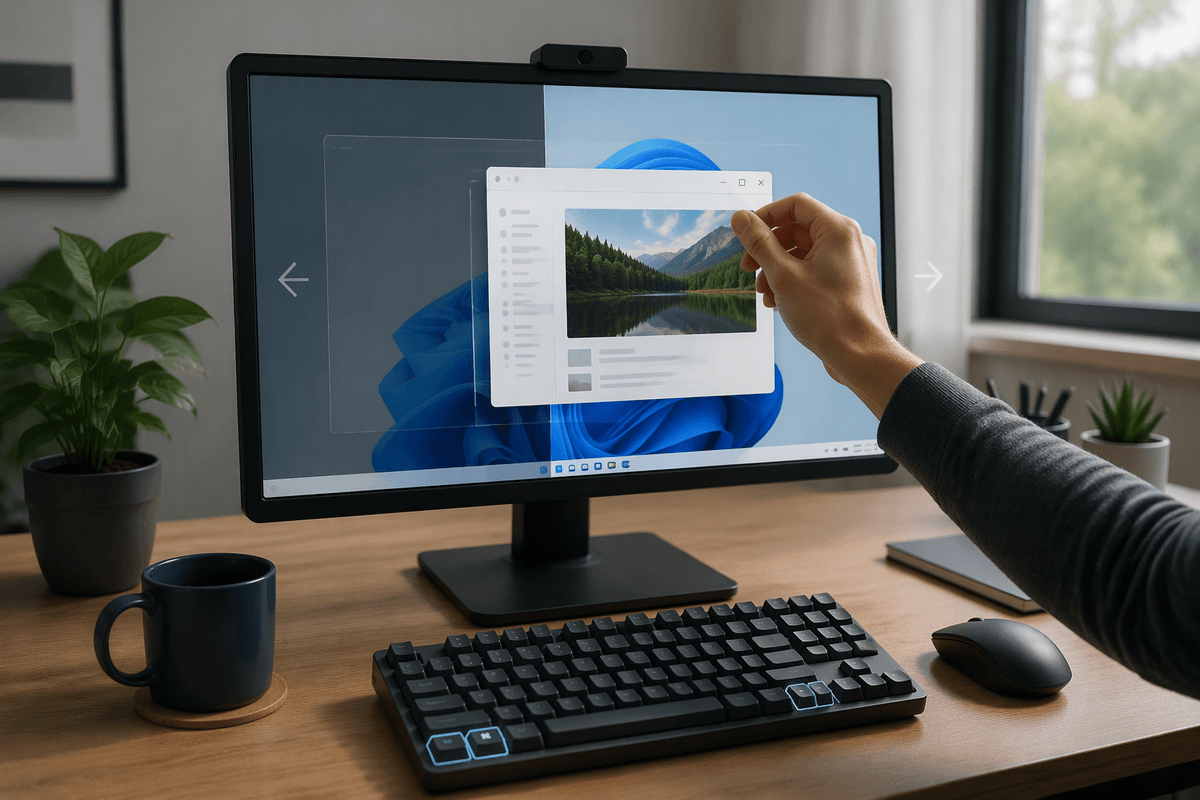
Mouse gestures become more useful when they handle positioning and Windows shortcuts handle the final command. Drag a window to the left or right edge to snap it into place, then press Windows key + Left Arrow or Windows key + Right Arrow to move it between sides. Windows key + Up Arrow maximizes the active window, while Windows key + Down Arrow restores or minimizes it. This combination is faster than repeatedly dragging title bars, especially when arranging several apps on a smaller display.
Use the mouse to select a file or folder, then apply shortcuts such as Ctrl+C to copy, Ctrl+X to cut, and Ctrl+V to paste. Pressing Shift while right-clicking a file may reveal additional commands in some Windows versions, while Shift+Delete removes an item without sending it to the Recycle Bin, so use it carefully. Windows key + E opens File Explorer, and Alt+Tab lets you switch between recently used windows without reaching for the taskbar. These shortcuts reduce pointer travel, but memorizing too many at once can slow you down. Start with two or three actions that match tasks you perform every day.
Adjust Settings When Gestures Get In The Way
When a gesture feels unreliable, change the setting before abandoning it. Open Windows mouse settings to adjust pointer speed so the cursor crosses the screen without becoming difficult to control. If the pointer seems to accelerate unpredictably, test the “Enhance pointer precision” option and keep the setting that feels more consistent for your hand. You can also choose how many lines the wheel moves per turn. A lower value helps with careful reading, while a higher value makes long pages and folder lists faster to navigate.
Other settings can prevent accidental actions. Increase the double-click interval if Windows often treats two separate clicks as one double-click, or lower it if opening files requires repeated attempts. Turn on ClickLock if holding the mouse button during long selections causes strain; Windows will keep the button engaged until you click again. If right-clicking is difficult, check whether the primary mouse button is set for your preferred hand. These adjustments may require a short period of readjustment, and very high pointer speed can reduce accuracy. Change one option at a time, then test it during normal work rather than judging it from a brief trial.
Build A Faster Personal Workflow
The best workflow is usually a small set of gestures matched to tasks you repeat every day. Use taskbar clicks or Alt+Tab to switch between active apps, window snapping to compare information, and Ctrl-click or Shift-click to select files in batches. When working in File Explorer, combine mouse selection with Ctrl+C, Ctrl+V, or right-drag commands instead of opening menus repeatedly. The goal is not to use every available gesture, but to reduce unnecessary pointer travel during familiar routines.
Build the habit gradually by choosing two actions to practice for a week, then add another only when they feel natural. Notice where delays or mistakes still occur, and adjust the relevant setting or choose a simpler method. A gesture that saves seconds but causes misplaced files is not an improvement. The fastest personal workflow is the one that feels predictable, accurate, and comfortable enough to use without conscious effort.