When Safari Downloads Stop Moving
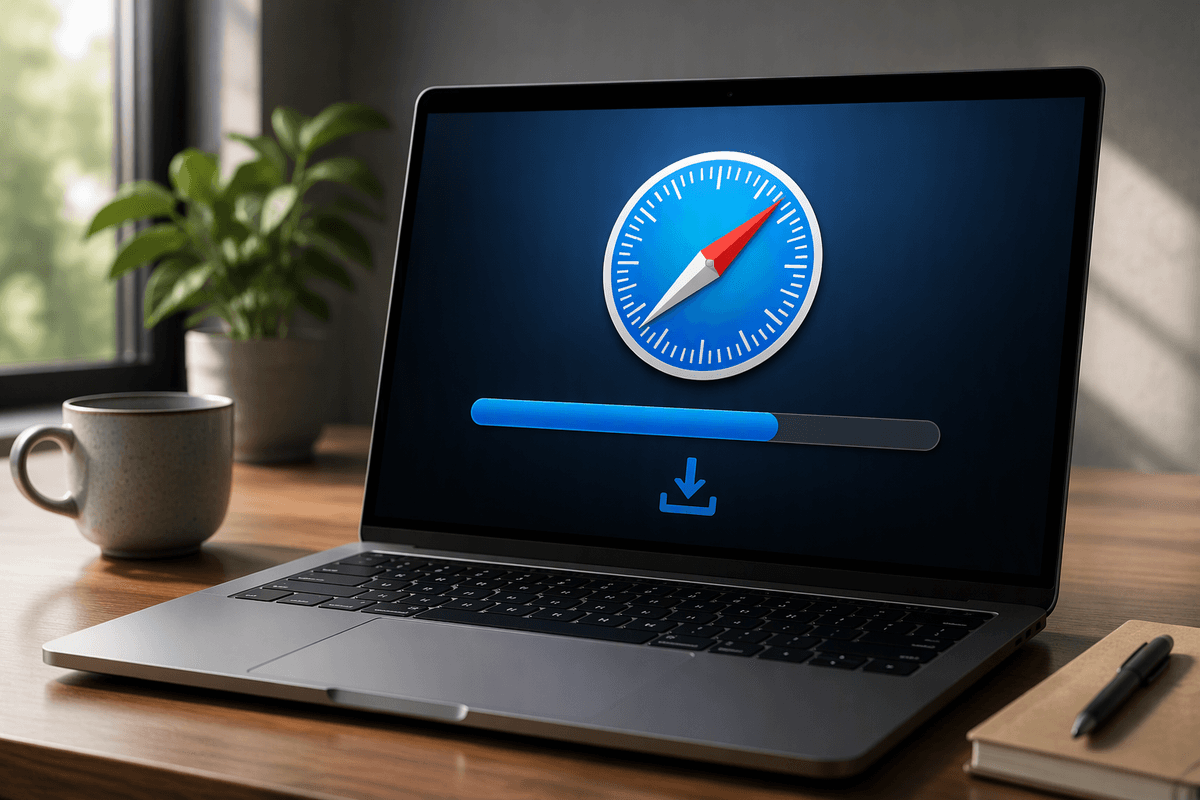
A Safari download that stops moving can look like a single problem, but several different issues can produce the same symptom. The progress bar may pause because the website stopped sending data, the connection briefly dropped, the Mac is running low on storage, or Safari cannot save the file where expected. A download may also appear stalled when the file is still being checked or written to disk.
Start with the simplest clues rather than changing settings at random. Check whether other websites load normally, look at Safari’s Downloads list for an error message, and confirm that the Mac has available space. If only one file or website is affected, the problem may be on the server or with that file. If every download fails, focus on Safari, macOS, the network, or storage.
Start With Safari’s Downloads List
Open Safari’s Downloads list by clicking the download button near the upper-right corner of the toolbar. Find the stalled item and read the message beside it. “Paused” usually means the transfer was stopped manually or interrupted, while messages such as “Failed,” “Cannot save,” or “Network connection lost” point toward different checks. If the item shows no clear error, watch whether the remaining time or file size changes after a minute. A completely unchanged entry is more useful evidence than a slow download.
Try resuming the item with the button beside it, then use the magnifying-glass icon to confirm whether the file was saved somewhere unexpected. If Safari created a partial file, remove that incomplete copy before trying again; otherwise Safari or the website may continue treating the old transfer as active. You can also cancel the download and start it again from the original page. This is worthwhile when the server sent a temporary error, but repeated failures on the same file suggest that the website, file, or account access may be responsible rather than Safari itself.
Check the Connection Before Safari
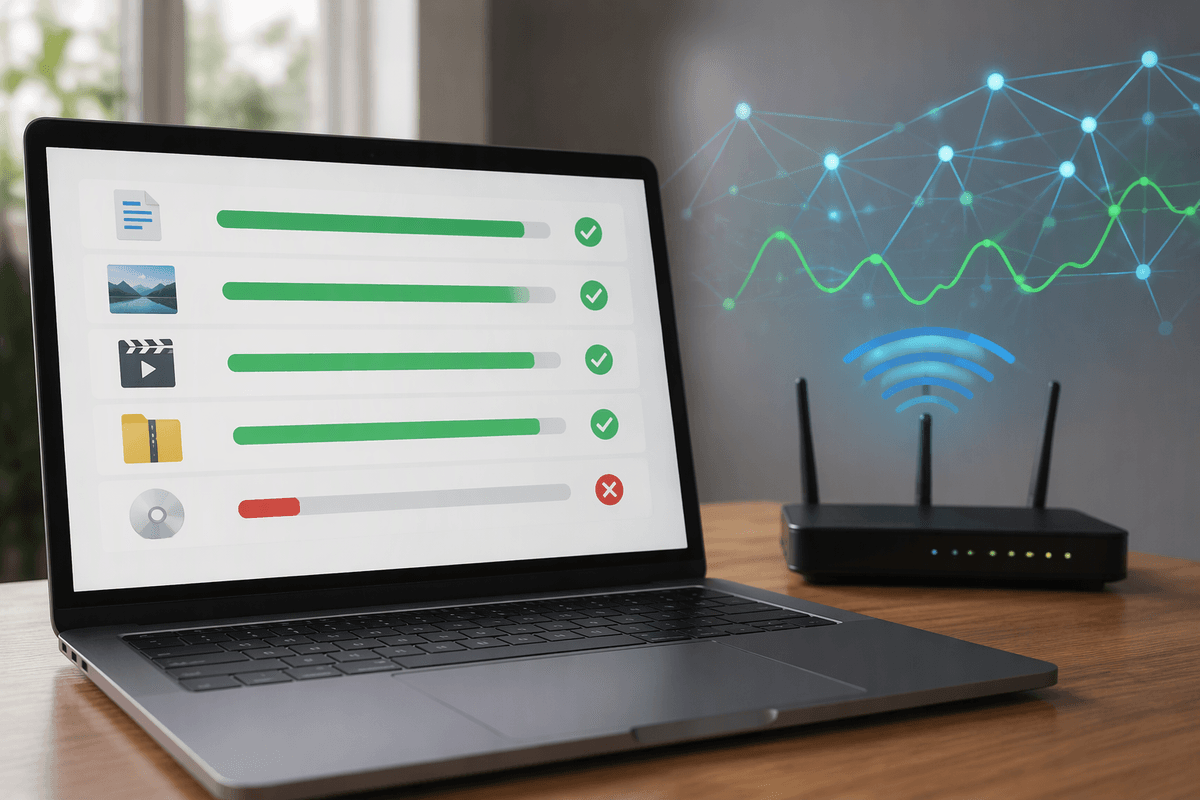
Before changing Safari, check whether the connection is stable enough to complete the transfer. Open another few websites in new tabs, preferably ones you do not normally use, and see whether they load promptly. If pages are also slow, fail to open, or repeatedly refresh, the download may be a network problem rather than a Safari problem. A large file can expose brief interruptions that ordinary browsing hides.
If you are using Wi-Fi, move closer to the router or temporarily connect through another network, such as a phone hotspot. Pause streaming, cloud backups, video calls, or other large transfers that may be consuming bandwidth. You can also disconnect from Wi-Fi and reconnect, then try the download again from the original page. Restarting the router may help, but it will interrupt everyone using that connection, so treat it as a quick test rather than the first step.
Compare results with a different website or a smaller file. If other downloads work, the original server may be slow, overloaded, or limiting access. If every download stalls even after the connection appears normal, continue with storage and Safari settings rather than repeatedly restarting the same transfer.
Make Sure Your Mac Has Room
Low storage can make a download pause near the end, fail without a clear explanation, or leave behind an incomplete file. Check available space by opening the Apple menu, choosing System Settings, and selecting General, then Storage. Leave enough room for the download itself plus temporary working space; a large installer, video, or archive may need considerably more than its displayed final size while Safari saves it.
If storage is nearly full, remove items you no longer need from Downloads, Empty the Trash, and review large files in the Storage recommendations. Check cloud-synced folders carefully before deleting anything, since removing a file may affect other devices. After freeing space, cancel the stalled download and start it again rather than assuming Safari will recover automatically. Also confirm that the destination disk is connected and writable if Safari saves to an external drive or another location. A drive that has been disconnected, gone to sleep, or become read-only can produce symptoms that look like a network failure.
Review Safari’s Settings and Site Access
Safari’s download location and site permissions can also prevent an otherwise healthy transfer from finishing. Open Safari’s settings and check the Downloads section to see where files are being saved. Choose a folder on an internal drive that you can access, rather than a disconnected external disk or a protected location. If Safari is set to ask for each download, watch for a prompt that may be hidden behind another window. Try selecting a fixed folder temporarily to remove that uncertainty.
Review the affected website’s permissions as well. From Safari’s settings, check whether the site is allowed to initiate downloads, use pop-up windows, or access content required to deliver the file. A download link may depend on a login session, a pop-up, or a permission prompt that was blocked earlier. If the site works for other files, remove its stored website data and sign in again, then retry. Private browsing can provide a quick comparison, although it may not preserve account access. Be cautious with security extensions: disable them only briefly for a trusted site, since they can block redirects or file requests that Safari needs.
Test for File, Security, or macOS Issues
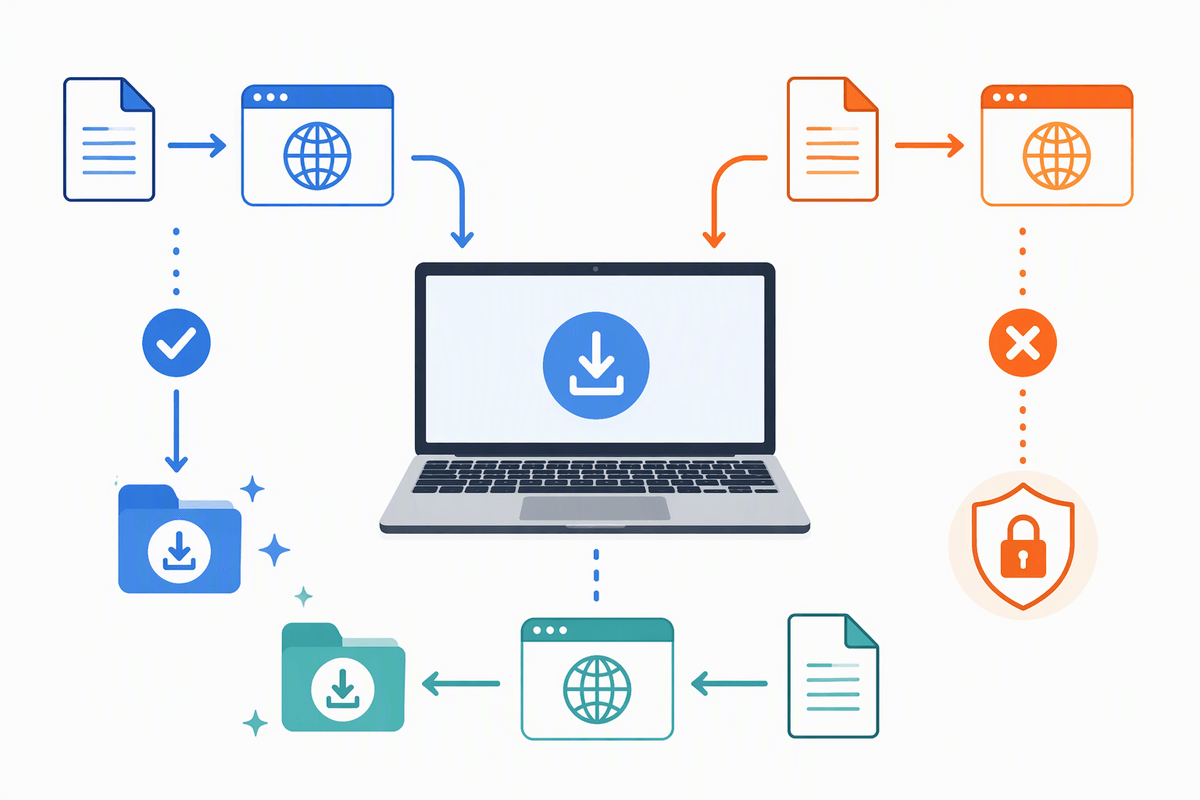
If Safari downloads work from some sites but not others, examine the file and the download method before changing macOS. A damaged archive, expired download link, oversized file, or account-restricted document may fail repeatedly even when Safari is functioning normally. Try downloading a different file from the same site, then try the original file from another browser if one is available. If only that file fails everywhere, contact the site owner or create a fresh download link rather than repeatedly retrying it.
Security software can also interrupt a transfer. Temporarily pause a third-party antivirus, firewall, or web-filtering tool, but only when you trust the file and understand how to restore the protection immediately. Check macOS notifications for a blocked file or permission warning, and install pending system updates if Safari behaves incorrectly across multiple sites. Restarting the Mac can clear a stuck background process, especially after an update or when Safari has been open for days. Avoid changing advanced security settings or deleting system files as a first response. If downloads still fail in Safari but work elsewhere, reset Safari settings only after recording your preferences and saved extensions.
Use a Short Isolation Checklist
When the cause is still unclear, use a short isolation checklist. First, try a small file from a different website. Then repeat the original download after confirming the connection, available storage, and Safari’s download folder. If only one site or file fails, suspect the server, account access, or file itself. If every site fails, compare Safari with another browser. If another browser also fails, focus on the network, storage, security software, or macOS.
Record what changed after each test instead of changing several settings at once. This narrows the problem without creating new variables. A download that remains stuck only in Safari may justify resetting Safari preferences or extensions. If it fails across browsers and networks, contact the website or Apple Support with the exact error and file details.