Is the Remote Fully Dead or Partly Working?
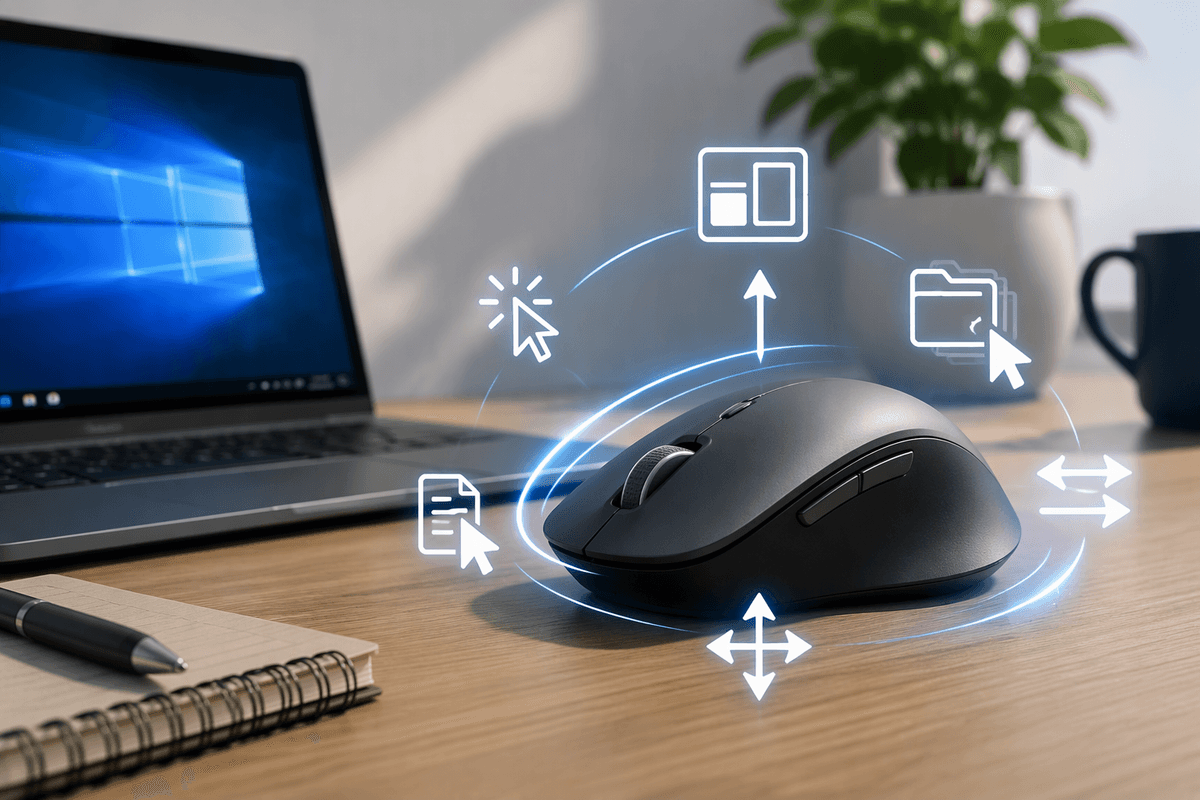
Start by noticing what still happens when you press a button. If the Fire TV shows no response at all—not even from the power, Home, or navigation buttons—the batteries may be fully drained, or the remote may have lost its connection. If some buttons work while others do nothing, the problem is more likely limited to the batteries, a dirty or worn button contact, or a fault in part of the remote.
Try several different buttons from close range, then watch for any response on the screen. A working Home button with an unresponsive volume button points to a different problem than a remote that appears completely inactive. This simple distinction helps determine whether to replace the batteries, reconnect the remote, or consider a replacement.
Start With the Fastest Power Checks
Begin with the batteries, because this is the quickest cause to eliminate. Remove both batteries and check that they are the same type, installed in the correct direction, and free from corrosion or leakage. Even if the remote light flashes, weak batteries may not provide enough power for reliable button presses or Bluetooth communication. Replace the pair with fresh batteries rather than mixing old and new ones.
With the new batteries installed, press Home, the directional buttons, and Select while standing a few feet from the Fire TV. If the screen responds now, the issue was likely low battery power. If nothing happens, remove the batteries again, hold the Home button for about 10 seconds, then reinstall them and test once more. Also check for a stuck button or a case pressing against the controls. If the remote remains completely inactive after fresh batteries, move on to connection checks instead of repeatedly pressing buttons.
Check What the Fire TV Still Responds To
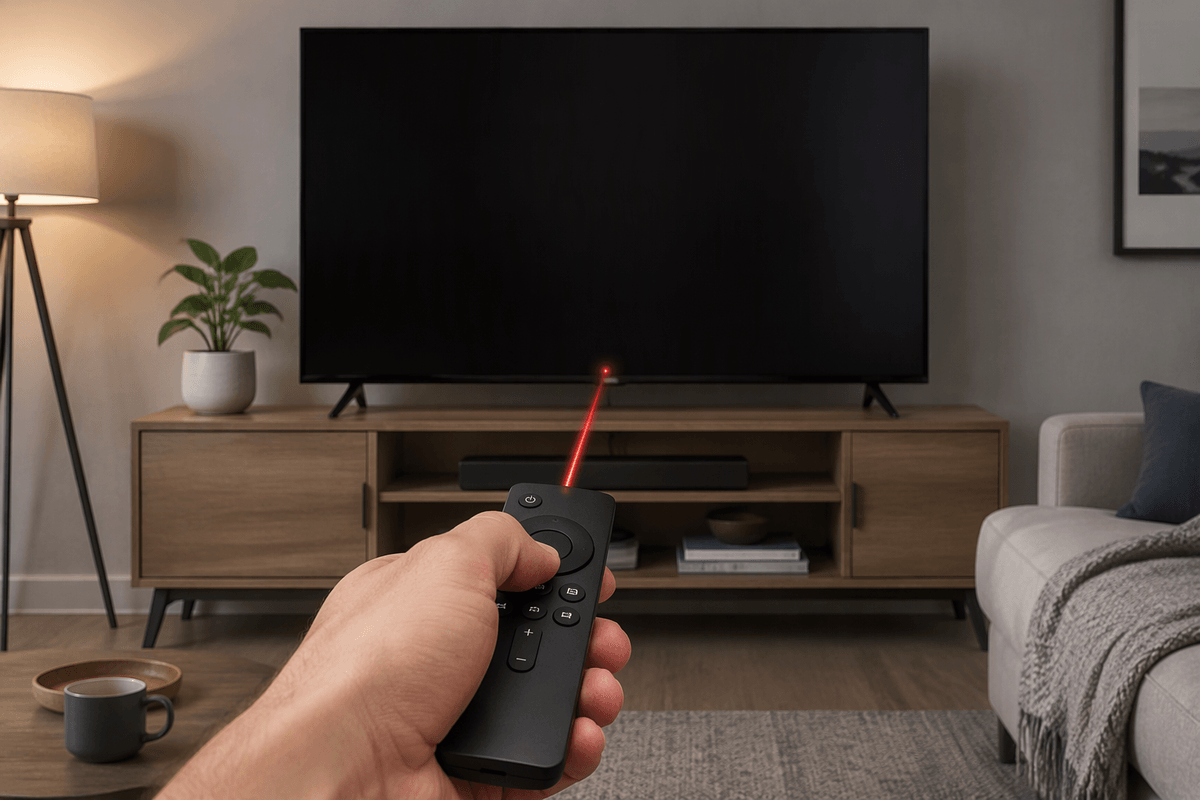
Now test the remote by function rather than pressing the same button repeatedly. Try Home, the directional ring, Select, Back, and Play/Pause while watching the Fire TV screen. If these buttons work but volume or power does not, the remote is communicating with the Fire TV, and the problem is probably limited to those controls or to how the TV is being controlled. Check that the remote is aimed at the TV when testing volume and power, since those commands may use infrared rather than the Fire TV’s Bluetooth connection.
If navigation works only from very close range, or responses are delayed and inconsistent, the batteries may still be weak or the connection may be unstable. If no button produces any response after fresh batteries, treat the remote as disconnected rather than assuming every button has failed. You can also test the Fire TV with its mobile app or another compatible remote if available. A second control method helps confirm whether the fault is in the remote or in the Fire TV itself.
Reconnect the Remote to Your Fire TV
Move within about 10 feet of the Fire TV, then press and hold the remote’s Home button for roughly 10 seconds. Watch for a pairing message or a response on the screen. If nothing happens, remove the batteries, wait 30 seconds, reinstall them, and hold Home again. Fresh alkaline batteries are worth using here, even if the remote’s indicator light still flashes.
If the remote remains unpaired, restart the Fire TV by unplugging it from power for about 60 seconds. Plug it back in, wait for the device to finish starting, then hold Home when the remote detection message appears. Keep other Bluetooth controllers nearby to a minimum during this process. If you still have access to the Fire TV menus through another remote or the mobile app, open Settings, select Controllers & Bluetooth Devices, choose Amazon Fire TV Remotes, and select Add New Remote. Pairing can fail when the device already has several controllers saved, so removing an unused remote may be necessary. If reconnection works, test every button before assuming the problem is fixed.
Use Your Phone When the Remote Partly Fails
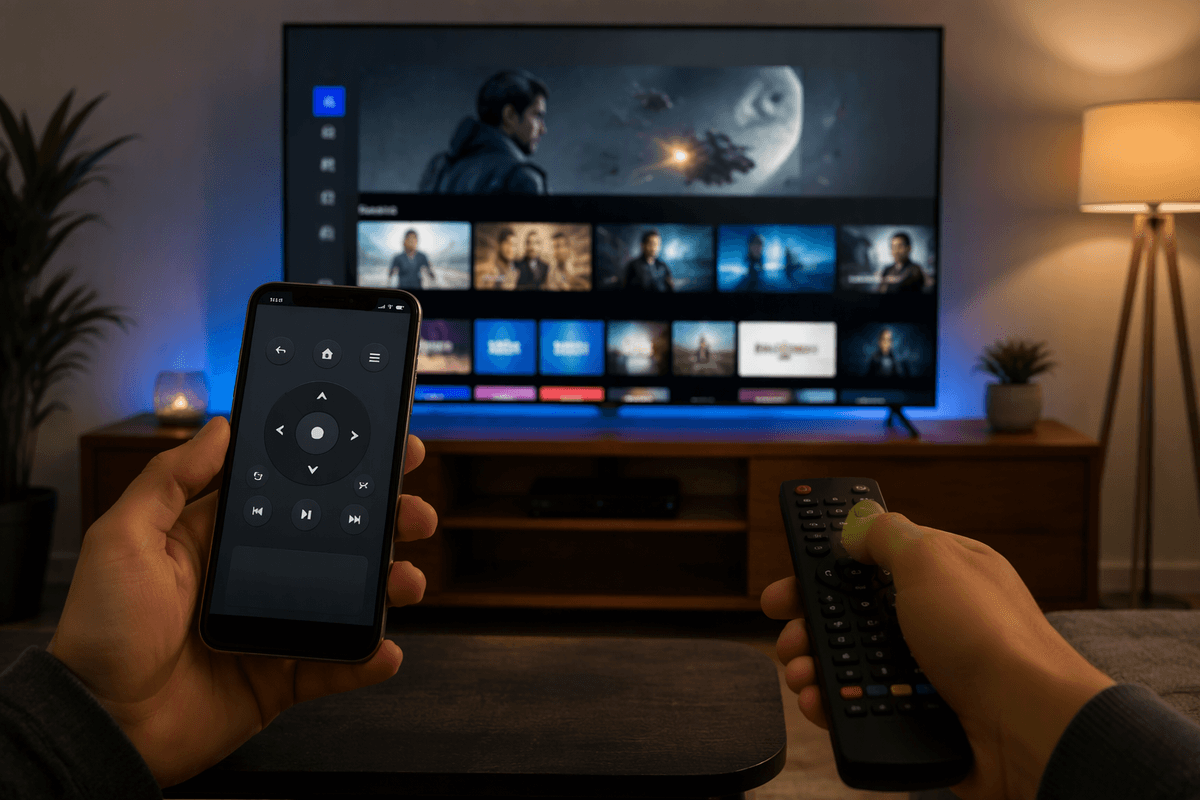
When the physical remote still controls some functions, use the Fire TV app on your phone as a comparison tool. Connect the phone to the same Wi-Fi network as the Fire TV, open the app, and select the device when it appears. The app may display a four-digit code on the TV that you must enter on the phone. Once connected, test navigation, Home, Back, and playback. If the app works normally while the physical remote does not, the Fire TV is responding and the fault is likely limited to the remote.
The phone is also useful when the remote cannot open Settings or complete pairing. Use it to navigate to Controllers & Bluetooth Devices, then add or reconnect the remote. This method has a practical limitation: it will not work if the Fire TV and phone are on different networks, and it may be difficult after a router change or factory reset. If the app cannot find the Fire TV, restore control with another remote or connect both devices to the same network before drawing conclusions.
Know When a Reset or Replacement Makes Sense
A reset makes sense when the Fire TV works through the mobile app or another remote, but the original remote will not reconnect after fresh batteries and repeated pairing attempts. Before resetting anything, remember that a Fire TV reset erases installed apps, account details, Wi-Fi settings, and personal preferences. It is a last resort for a device-side problem, not a routine fix for one failed button. If possible, keep the phone app or another remote available so you can complete setup afterward.
Replacement is more reasonable when the remote shows physical damage, battery corrosion, a loose battery compartment, or a pattern where the same buttons fail every time. A remote that works only when pressed hard may have worn contacts, while a remote that never responds after new batteries and re-pairing may have an internal fault. Test the Fire TV with the app first, then replace the remote if the TV responds normally. This avoids paying for a new device when only the controller has failed.
Choose the Next Step Without Guessing
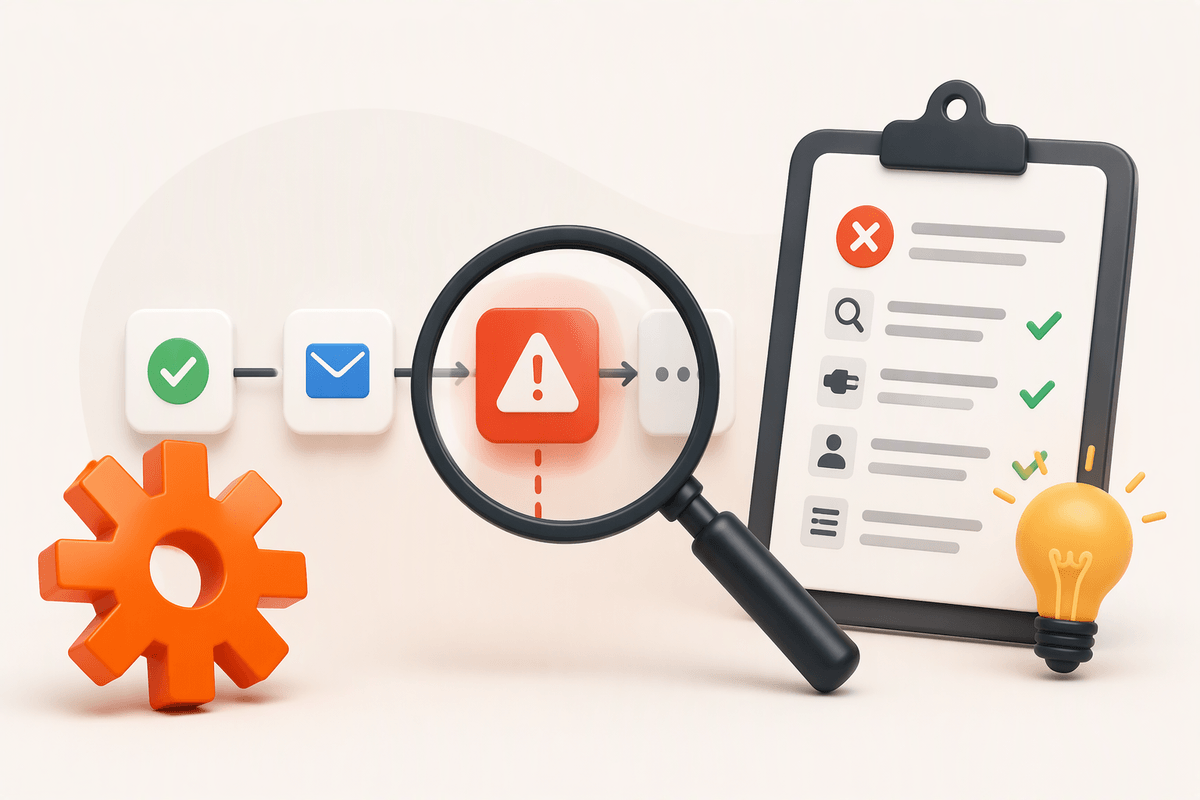
Use the result of each check to choose one clear action. If fresh batteries restore every function, keep using the remote and monitor it for repeat problems. If navigation works but power, volume, or a few buttons fail, the Fire TV connection is probably fine; clean around the buttons or replace the remote rather than resetting the device. If nothing responds, try pairing again and use the phone app to confirm that the Fire TV itself still works.
Replace the remote when it has physical damage, corrosion, or repeated button failures after new batteries and re-pairing. Consider resetting the Fire TV only when multiple control methods show a device-side problem and you can complete setup again. This approach prevents a simple battery or remote fault from turning into unnecessary troubleshooting, lost settings, or an avoidable replacement.