Why Autofill Fails on Some Websites
Autofill usually fails for a practical reason: websites do not all build login forms the same way. One site may use clearly labeled username and password fields, while another loads them only after a button is clicked, hides them inside an embedded window, or replaces them with a custom sign-in screen. A password manager may also avoid filling a page it considers unfamiliar or unsafe.
Browser settings, extension permissions, and saved login details add more variables. Autofill can place a username in the wrong field when labels are unclear, choose an outdated entry when several accounts share the same address, or stop working after a site changes its login process. These failures do not necessarily mean the password manager is broken. Often, the safest response is to identify which part failed before changing settings or entering credentials manually.
Start With the Browser and Extension Setup
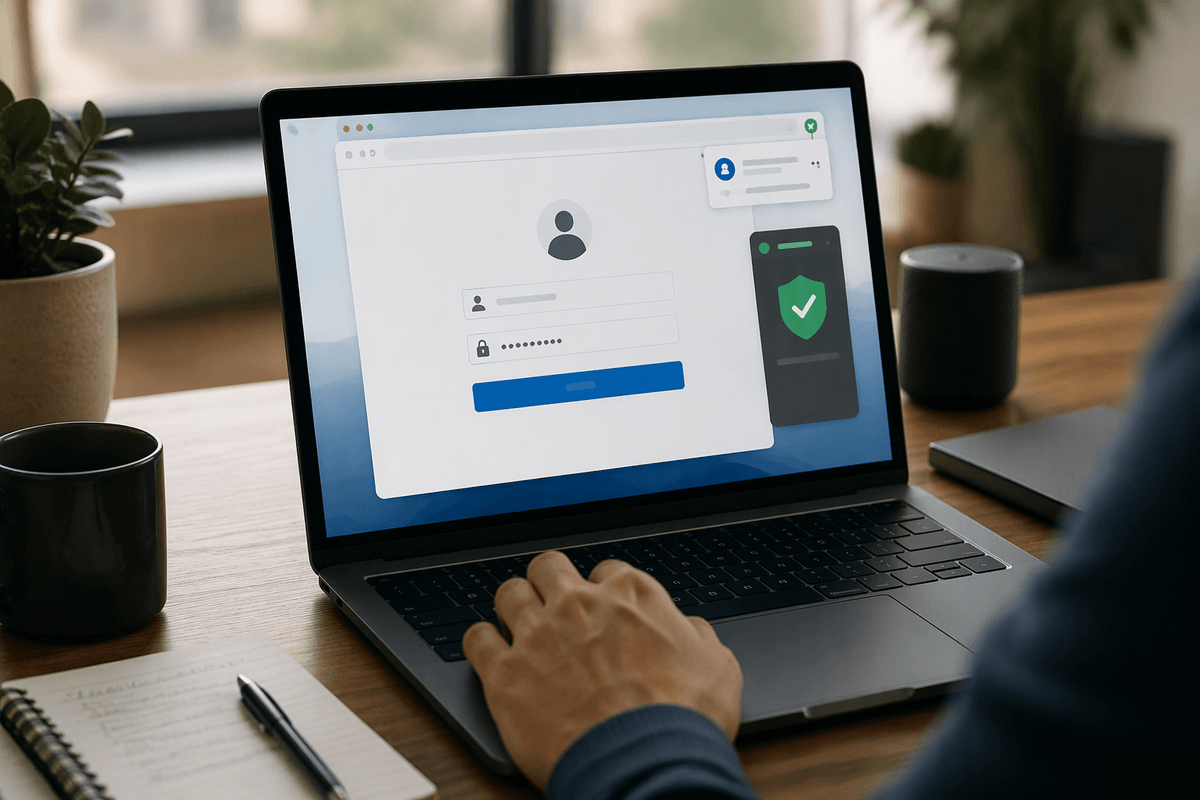
Begin with the basic setup before changing saved passwords or blaming the website. Confirm that the password manager extension is installed in the browser you are actually using, signed in to the correct account, and enabled for the current site. If you switch between Chrome, Edge, Firefox, Safari, or private browsing windows, each environment may have different extension permissions, vault access, or autofill settings.
Check whether the extension is allowed to read page content and display its autofill icon. Browser updates, stricter privacy settings, content blockers, and corporate security policies can disable those permissions without making the cause obvious. Also review whether the browser’s own password manager is competing with the extension. Two autofill systems may offer different entries or fill different fields. Disabling one system can make behavior more predictable, but it may not be possible on a managed work device. After confirming the setup, reload the page and test the form again before making further changes.
Check Whether the Saved Login Matches
Once the extension is working, inspect the saved login before changing the website or browser. Open the password manager’s entry and compare its username, email address, and website address with the account you are trying to use. A similar-looking entry may belong to a different account, subdomain, regional site, or older version of the service. If several entries appear, select the one that matches the current account rather than accepting the first suggestion.
Check whether the password was recently changed, too. If the site accepts the username but rejects the password, update the saved entry only after confirming the new password works through the site’s normal sign-in process. Saving a new login can create duplicates, so edit the existing record when possible and remove obsolete entries only after verifying they are no longer needed. Be careful with usernames that include spaces, phone numbers, or alternate email addresses; the correct account identifier may not be obvious from the page. When the saved details match but autofill still fails, the problem is more likely related to the form itself.
Use the Right Autofill Method for Each Site
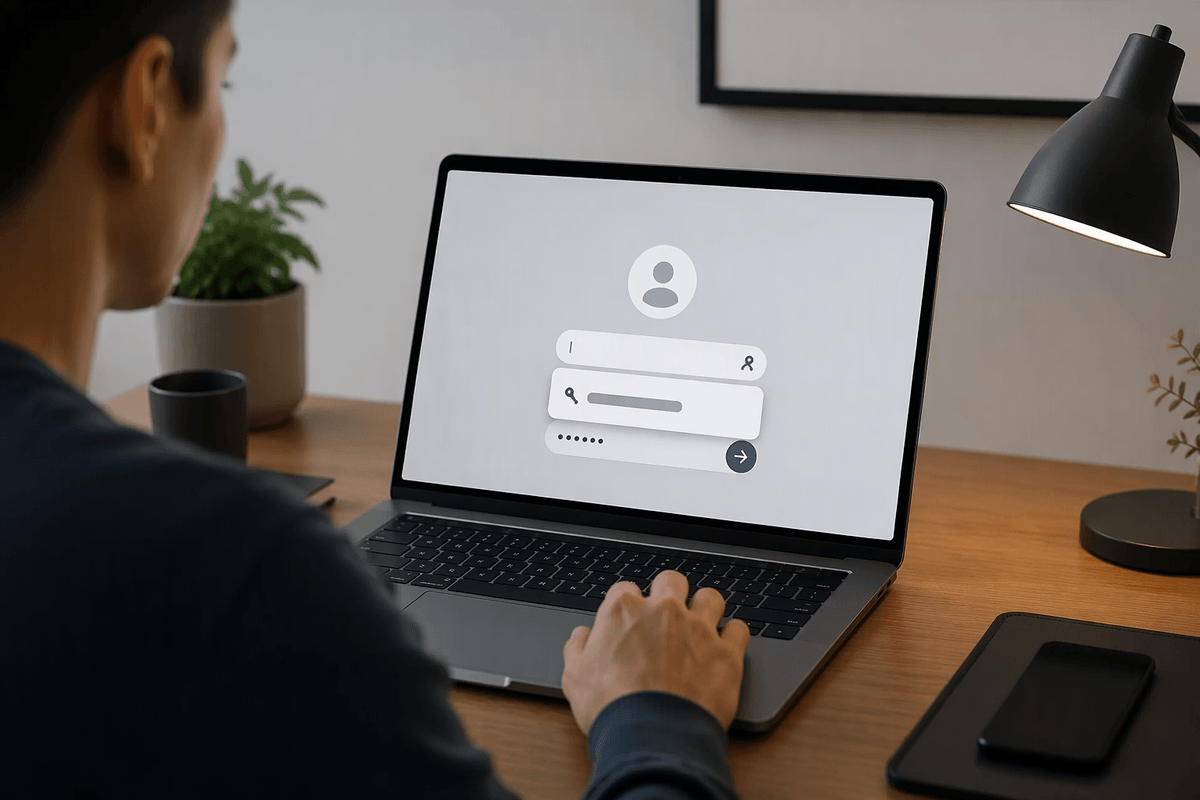
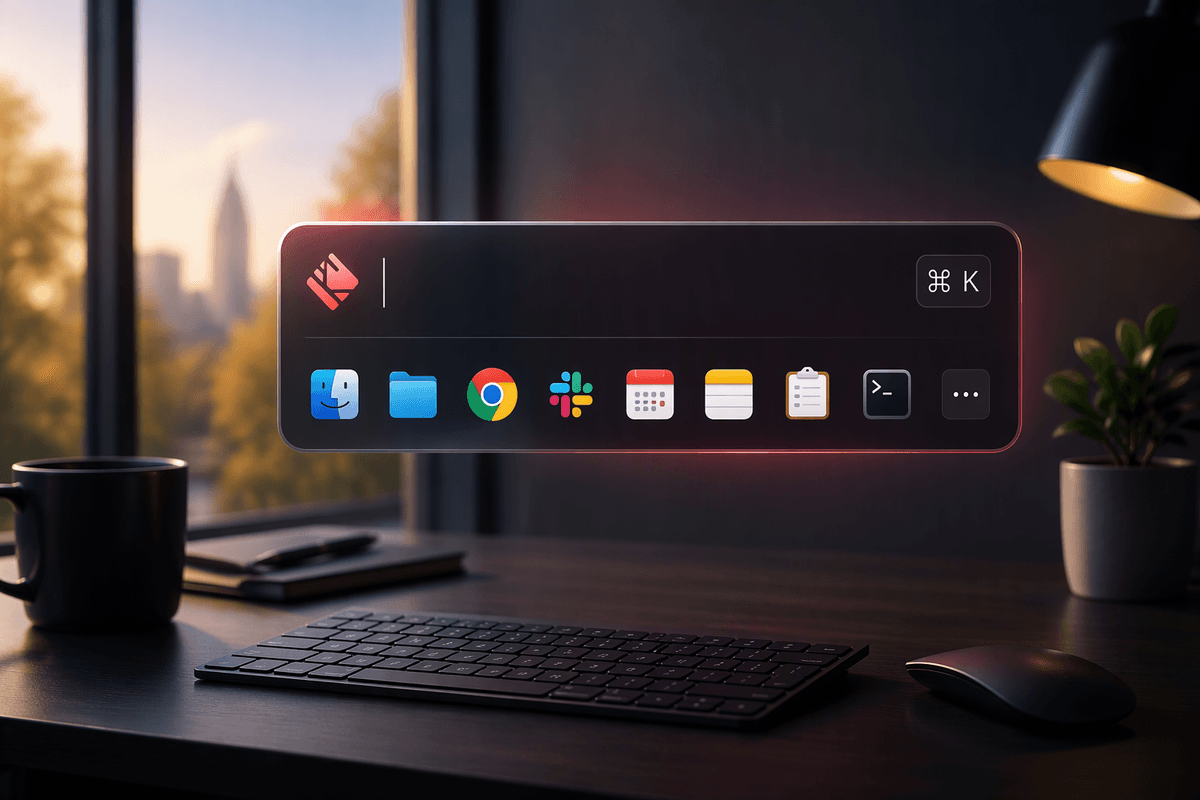
Different login pages call for different autofill methods. On a standard form, selecting the password manager’s icon in the username or password field is usually the simplest option. If the page supports it, opening the extension menu and choosing the matching login can work better when several accounts are available. Some managers also let you copy the username or password separately, which helps when the form displays one field at a time.
Use manual filling when a site blocks inline autofill, places fields inside a pop-up, or changes the form after you click Sign in. Enter the username first, wait for the password field to appear, and then fill the password rather than pasting both into a page that has not finished loading. For especially sensitive sites, open the password manager directly and copy only the needed value, checking that the destination is correct before pasting. This takes longer and increases the chance of a typing or clipboard mistake, but it avoids forcing credentials into the wrong fields. If a site offers a password-manager-specific prompt, prefer that prompt over repeated attempts with browser autofill.
Handle Difficult Login Forms Carefully
Some login forms are difficult because they do not behave like ordinary web fields. A site may ask for an email address on one screen, reveal the password field only after a delay, or split the process between the main page and a pop-up. It may also use an embedded sign-in window that the password manager cannot identify reliably. In these cases, click through the form normally and let each step finish before trying to fill the next field.
If autofill inserts a value into the wrong box, clear it rather than submitting the form and hoping the site interprets it correctly. Check for separate fields labeled username, email, account ID, PIN, or security code; they may look similar but require different information. Avoid disabling security warnings or allowing autofill on an untrusted page just to make the process easier. When a form repeatedly rejects autofill, use the password manager’s copy function or type the value manually, then confirm that the page is legitimate and using the expected address. Manual entry is slower, and copying sensitive values can leave them available in the clipboard, so clear the clipboard afterward when your device supports that option.
Improve Reliability Without Weakening Security
Reliability improves when autofill is predictable, not when every protection is turned off. Keep the password manager, browser, and extensions updated, and enable autofill only for sites you recognize. If your manager offers separate controls for usernames, passwords, payment details, or addresses, limit each category to what you actually use. This reduces accidental filling on pages that contain look-alike fields or embedded advertisements.
Review trusted-site or domain settings carefully. Adding a legitimate alternate domain can help when a service uses separate addresses for account management and sign-in, but broadening the rule to every related domain creates unnecessary exposure. Avoid saving passwords in shared browsers, temporary profiles, or devices you do not control. Multi-factor authentication should remain enabled even when autofill works reliably, because a stolen password can still be used from another device.
There is also a practical limit: some sites will remain incompatible with automatic filling after updates or security changes. Treat manual entry as an acceptable fallback rather than weakening warnings, lowering protection levels, or approving an unfamiliar page. A few extra seconds is a reasonable cost when the alternative is sending credentials to the wrong destination.
Build a Simple Troubleshooting Routine
When autofill fails, use the same short sequence each time: confirm the page is genuine, check the browser and extension, compare the saved login with the account, and reload the form. Test the username and password fields separately if the page uses multiple steps. If the problem continues, try the password manager’s menu or copy the values manually rather than repeatedly clicking autofill.
Record patterns that may reveal the cause. Note the browser, site, account, and whether the failure involved a missing suggestion, incorrect field, or rejected password. If only one site is affected, its form may have changed; if several sites are affected, review permissions or updates. Stop troubleshooting when the page behaves unexpectedly, and use manual entry only after verifying the destination.