You have two Echos—what should happen next?
You unbox the second Echo, plug it in, and expect it to appear in the Alexa app right beside the first—ready to play the same song in two rooms. Sometimes it does. Other times, one device shows up under a different household, or it connects to a “Guest” Wi‑Fi you forgot you had, and now nothing lines up when you try to make a multi-room group.
The goal is simple: both Echos live on one Amazon account and one Wi‑Fi network before you touch any group settings. That sounds obvious until you’re staring at “Device not responding” or a speaker that never appears. The fastest way forward is to confirm the account first, then the network.
Confirm every Echo is on the same Amazon account
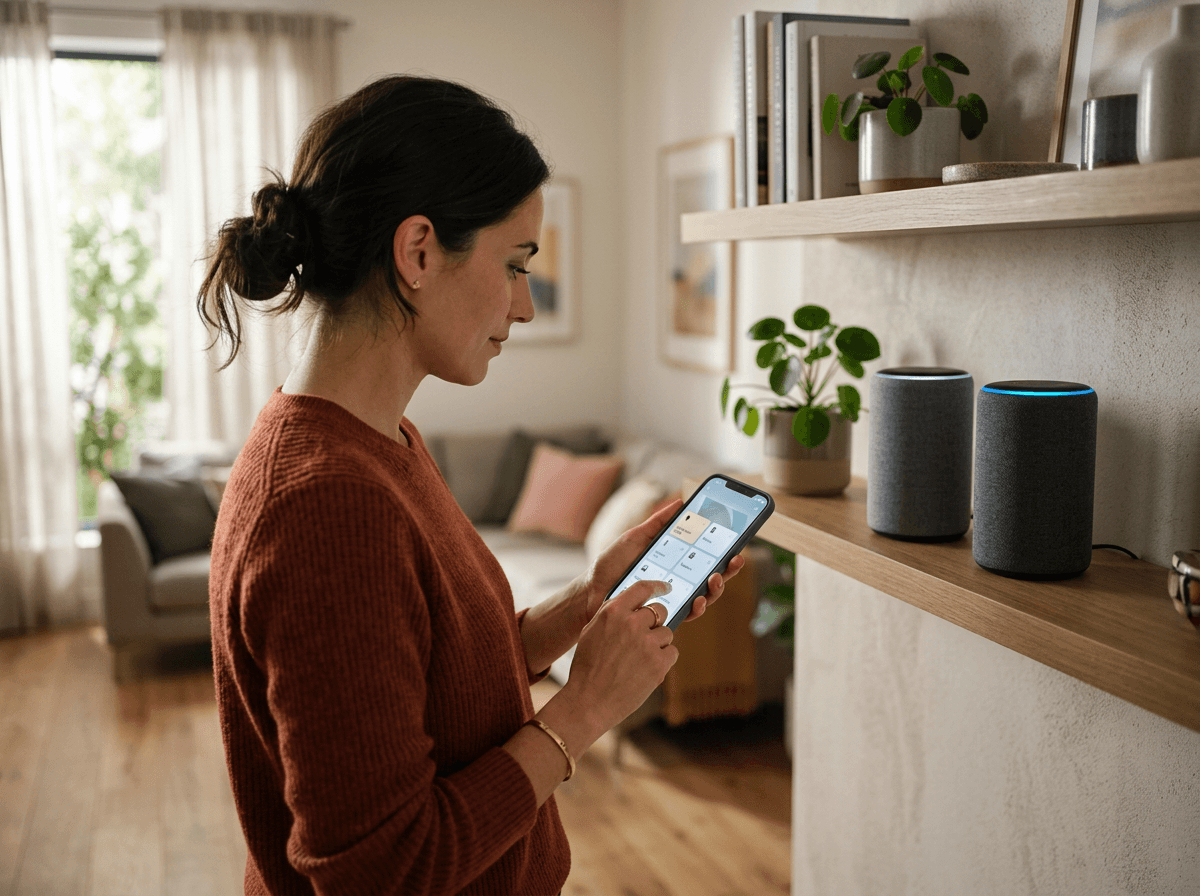
You tap Devices in the Alexa app and only one Echo appears, or both appear but one is labeled like it belongs to someone else. That’s almost always an account mismatch. Multi-Room Music won’t behave until every speaker is registered to the same Amazon account inside the same Alexa app sign-in.
In the Alexa app, go to More > Settings > Your Profile & Family (or Account Settings) and confirm which Amazon account you’re signed into. Then open each Echo under Devices > Echo & Alexa and check it’s in your household, not a separate profile. If you see an Echo you can’t control, it’s usually registered to a different account—fixing it often means a factory reset and setting it up again, which is annoying but faster than chasing ghosts.
Once both devices show under the same login and you can rename them, the next question is whether they’re actually on the same Wi‑Fi.
Are all speakers actually on the same Wi‑Fi?
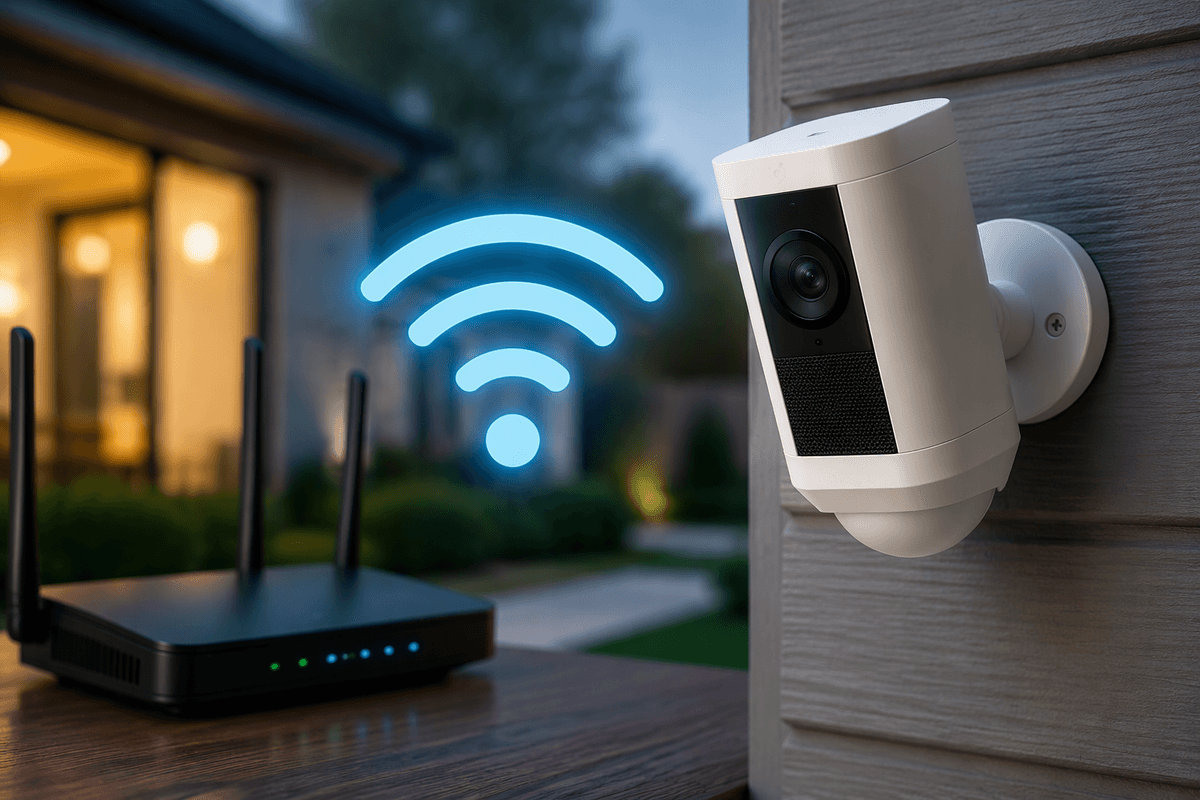
You can be signed into the right account and still watch one Echo refuse to join a group because it’s quietly on a different network. The common culprits are a “Guest” SSID, a Wi‑Fi extender that uses a different name, or a router that broadcasts both 2.4 GHz and 5 GHz with separate names. If one Echo is on “Home-5G” and the other is on “Home,” they won’t line up the way you expect.
In the Alexa app, open Devices > Echo & Alexa > select an Echo > Settings (gear) > Wi‑Fi Network. Do that for every speaker and make sure the network name matches exactly. If one is wrong, change it there (you may need to bring your phone onto the target Wi‑Fi first).
If you run mesh or extenders, don’t chase which “node” it’s on—just keep the SSID consistent. When that still doesn’t stick, a quick power cycle of the router and both Echos often clears stale connections before you troubleshoot deeper.
When an Echo won’t show up, use this triage
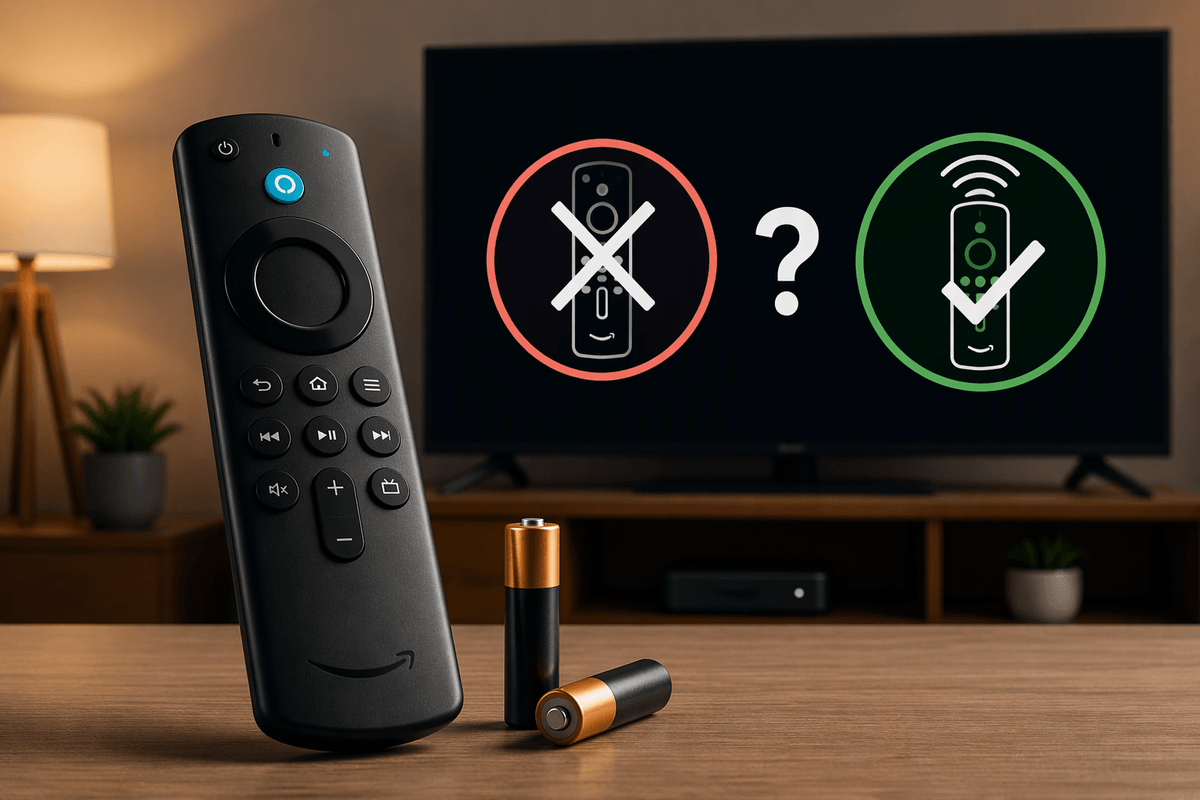
You open Devices and the second Echo just isn’t there, even though it’s plugged in and talking. Treat that as a setup-state problem, not a “group” problem. Start with the simplest check: is the light ring on and does it respond to “Alexa, what time is it?” If it answers, it has power and is booted; if it won’t respond, swap outlets and try a different power adapter if you have one.
Then force the app to refresh its view of your home. Turn your phone’s Wi‑Fi off and back on, fully close and reopen the Alexa app, and wait a minute on the Devices screen. If it still won’t appear, put the Echo into setup mode and add it again: Devices > + > Add Device > Amazon Echo. If the app can’t find it, reset the Echo (the button combo varies by model) and run setup from scratch. It’s tedious, but it clears “half-set” registrations that never finish.
One real snag: if your router blocks device discovery (some “AP isolation” or guest settings do this), the Echo may work for voice but stay invisible in setup. Get it onto your main Wi‑Fi, then try creating the group.
Create the Multi-Room Music group without second-guessing
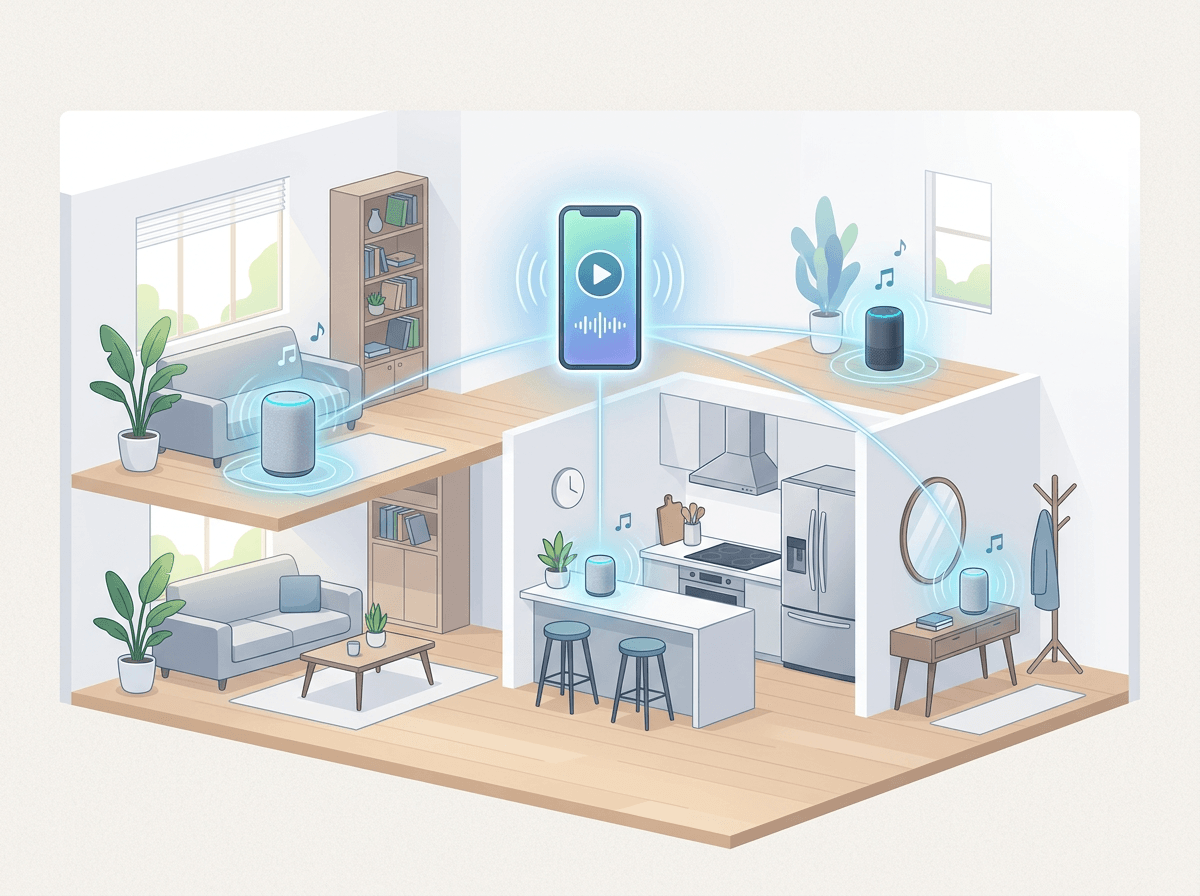
You’ve got two Echos showing in the app, they answer you, and yet the group screen still feels like a guessing game. The clean path is to create one Multi-Room Music group once, name it in plain language, and only include speakers you want to hear together every time.
In the Alexa app, go to Devices > + > Combine speakers (or Set Up Audio System) > Multi-Room Music. Select the Echos you want, then give the group a simple name you’ll actually say out loud, like Everywhere or Downstairs. Avoid naming it the same as a single device (“Kitchen”), because voice requests can land on the wrong target and make it seem like the group failed.
If a speaker is missing from the list, don’t keep tapping. Back out, check it’s online under Devices, and make sure it’s not mid-update (a recent restart helps). Once the group saves, playback is the only thing left to choose.
Start playback: voice or app, and choose your default
You say “Alexa, play music everywhere,” and it works—until it doesn’t, because Alexa heard the wrong group name or sent audio to the device you’re standing next to. Keep it predictable by using the exact group name you created: “Alexa, play jazz on Everywhere.” If you want to change music without stopping what’s already playing, “Alexa, play this everywhere” often switches the current stream to the group, but it can be hit-or-miss with some services.
The app is your control panel when voice gets fuzzy. In the Alexa app, open Play (or Music & Podcasts), start a track, then tap Available Devices and pick the Multi-Room group. One real limitation: you can’t set a true “default speaker” for generic music everywhere in a way that overrides every habit; Alexa will still follow the last device used or what it thinks you meant. If that starts to feel random, tighten the commands and test volume levels before you rely on it daily.
If audio drifts or drops, make it reliable again
You press play and it sounds great for a minute—then one room lags, or a speaker cuts out when you walk between rooms. That’s usually Wi‑Fi stability, not the group itself. Start simple: reboot your router, then unplug both Echos for 10 seconds and plug them back in. If you run a mesh, keep the speakers on the main SSID (not a guest network) and don’t mix “Home” and “Home-5G” names.
If it still drifts, check for a stuck update: in the Alexa app, open each Echo and confirm it shows as online, then say, “Alexa, check for software updates.” A real-world headache is weak signal where the speaker sits—moving an Echo even a few feet away from a TV, microwave, or thick wall can stop the dropouts. Once the audio stays locked, you can stop babysitting it and just use the group.