Why Live View Gets Stuck Loading
When the Ring app opens normally but Live View spins without showing video, the problem is usually somewhere between the camera and the internet. A weak Wi-Fi signal, interference, or a busy network can prevent the camera from sending a steady video stream. The camera may still appear online because basic status updates require far less bandwidth than Live View.
Router settings, temporary service problems, an outdated app, or a camera that needs restarting can cause the same symptom. Start with the simplest distinction: check whether other devices can stream reliably and whether the camera is far from the router. Live View also uses more data than motion alerts, so a connection that handles notifications may still fail under video demand. Testing Wi-Fi conditions first helps avoid replacing working hardware unnecessarily.
Check Whether Wi-Fi Is the Real Bottleneck
Start by testing the same Wi-Fi network from a phone near the Ring device. Open a video service or run a speed test, then repeat the test beside the router. If streaming is unreliable in both locations, the network is the likely bottleneck rather than the camera. Also check whether someone is uploading large files, gaming online, or using several cameras at once. Live View needs a sustained connection, and brief drops can leave the app loading indefinitely.
For a more useful comparison, temporarily bring the Ring device closer to the router if the installation allows it, or test another Ring device on the same network. If Live View works near the router but fails at its normal location, distance, walls, or interference are affecting the connection. If every device struggles, restart the router and retest after it reconnects. A speed test is only a clue, not a guarantee: latency, signal stability, and upload performance matter too. Avoid judging the connection solely by the camera’s “online” status, since that status can remain available when video quality is inadequate.
Look at Signal Strength Near the Camera
Open the Ring app and check the camera’s Device Health page for its Wi-Fi signal reading, often shown as RSSI. The exact number matters less than the pattern: a stronger reading usually has a less negative value, while a very negative value indicates the camera is struggling to maintain a connection. Check it from the camera’s installed location, not beside the router. A phone can show full bars in the same room while the camera receives less reliable signal because of its position, wiring, exterior walls, metal siding, or nearby appliances.
Move the router, camera, or a mesh node only if you can do so safely and without leaving the camera exposed to weather or tampering. Keep routers away from televisions, cordless-phone bases, and large metal objects. If the signal is borderline, a Wi-Fi extender may help, but placing it in the weak zone will not; it needs a strong connection to the router first. After changing placement, wait briefly, then test Live View again rather than relying only on the updated signal reading.
Fix Router Settings That Block Video
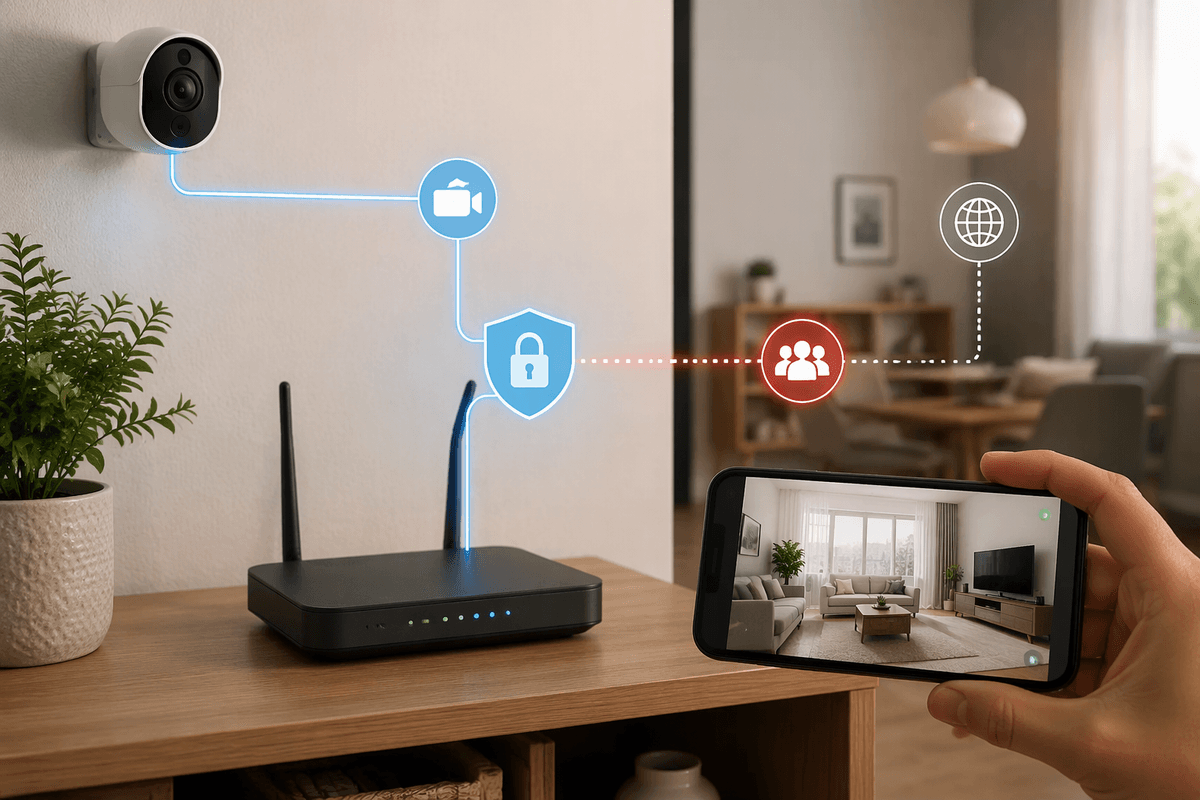
Some router settings can let the camera appear connected while blocking or disrupting Live View. Confirm that the Ring device is on your normal home network, not a guest network with client isolation enabled. Guest networks often restrict communication between devices, and some routers apply separate firewall or access rules to them. Also check parental controls, access schedules, and device-pause features that may interrupt the camera’s internet access. If your router combines 2.4 GHz and 5 GHz under one network name, temporarily test the camera on the band it supports most reliably, especially if setup or reconnection has been inconsistent.
Look for security settings that block unknown devices, restrict outbound connections, or use unusually strict firewall rules. Do not disable security permanently, but you can briefly relax one setting, test Live View, and restore it if it makes no difference. Keep the router’s firmware current, and avoid making several changes at once so you know which adjustment mattered. Advanced options such as custom DNS, or network-wide ad blocking can also interfere with video services. If Live View works after bypassing one of these features, add the camera back using an allowed-device or exception rule rather than leaving the entire network less protected.
Restart the Right Devices in Order
When settings and signal checks do not restore Live View, restart the equipment in a deliberate order. First close the Ring app completely and reopen it after the network is ready. Then unplug the router, and if you use one, unplug the modem or gateway as well. Wait at least 60 seconds before powering the modem or gateway back on. Give it several minutes to reconnect, then power the router and wait until its Wi-Fi is available.
Once the network is stable, restart the Ring camera. Battery models can usually be restarted by removing and reinserting the battery; wired models may require briefly switching off the correct circuit, if it is safe to do so. Do not repeatedly cut power while the device is updating or reconnecting. Open the app only after the camera’s status has had time to refresh, then test Live View. This order matters because restarting the camera before the router is ready can leave it negotiating with the same unstable connection. If other cameras or devices depend on the network, allow extra time for all of them to reconnect before judging the result.
When the Problem Is the App or Ring Service
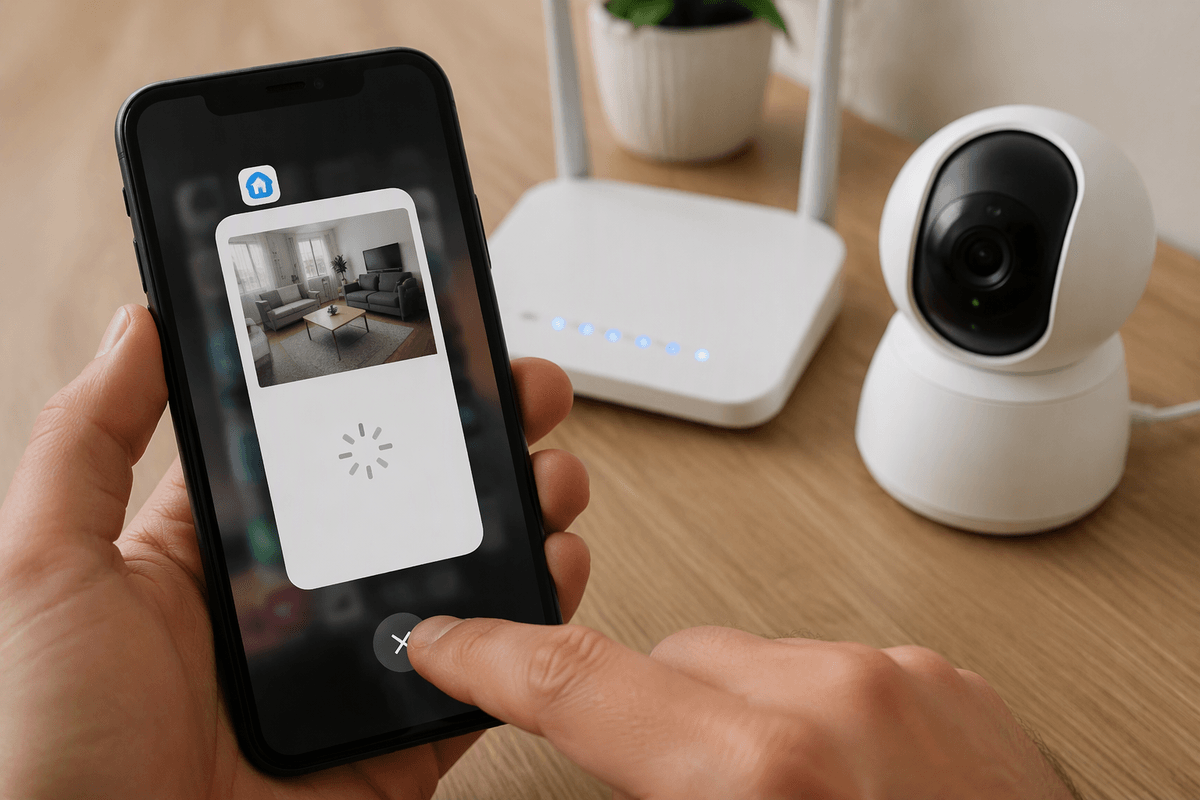
If other devices stream normally and the camera has a stable connection, test the Ring app itself. Force-close it, reopen it, and check whether an update is available in your phone’s app store. Also install pending phone updates, then sign out and back in if the app continues loading without an error. On Android, clearing the app cache can remove damaged temporary data; on iPhone, deleting and reinstalling the app may be necessary. Save your login details first, and do not remove the camera from your Ring account unless support instructs you to.
Try Live View from another phone or tablet on the same account. If it fails on multiple devices while Wi-Fi and other streaming services work, check Ring’s service-status information for an outage or maintenance event. Service interruptions can affect Live View even when the app opens and the camera reports as online. If the problem lasts after the service is restored, record the camera model, app version, error message, and approximate time of each failed attempt. That information helps Ring support distinguish an account or service issue from a failing camera.
Know When to Escalate or Replace Hardware
Escalate to Ring support when Live View still fails after testing another device, confirming stable Wi-Fi, restarting the network, and checking for service problems. Before contacting support, note whether the issue affects one camera or every Ring device, and record the model, firmware or app details, signal reading, and any error message. Support may identify an account issue, review device diagnostics, or confirm a known compatibility problem. Avoid factory-resetting the camera unless instructed, since that can erase useful configuration information and create another setup step.
Hardware replacement becomes more reasonable when one camera repeatedly fails on a known-good network, cannot complete setup, drops offline while nearby devices remain stable, or shows power-related symptoms. Check the power supply, battery condition, wiring, and weather exposure first. A replacement will not solve a weak signal or restrictive router rule, so use another camera or a temporary nearby test to separate device failure from network conditions. If those tests point to the camera, warranty support is usually the best first option.