Is the Screen Completely Unresponsive?
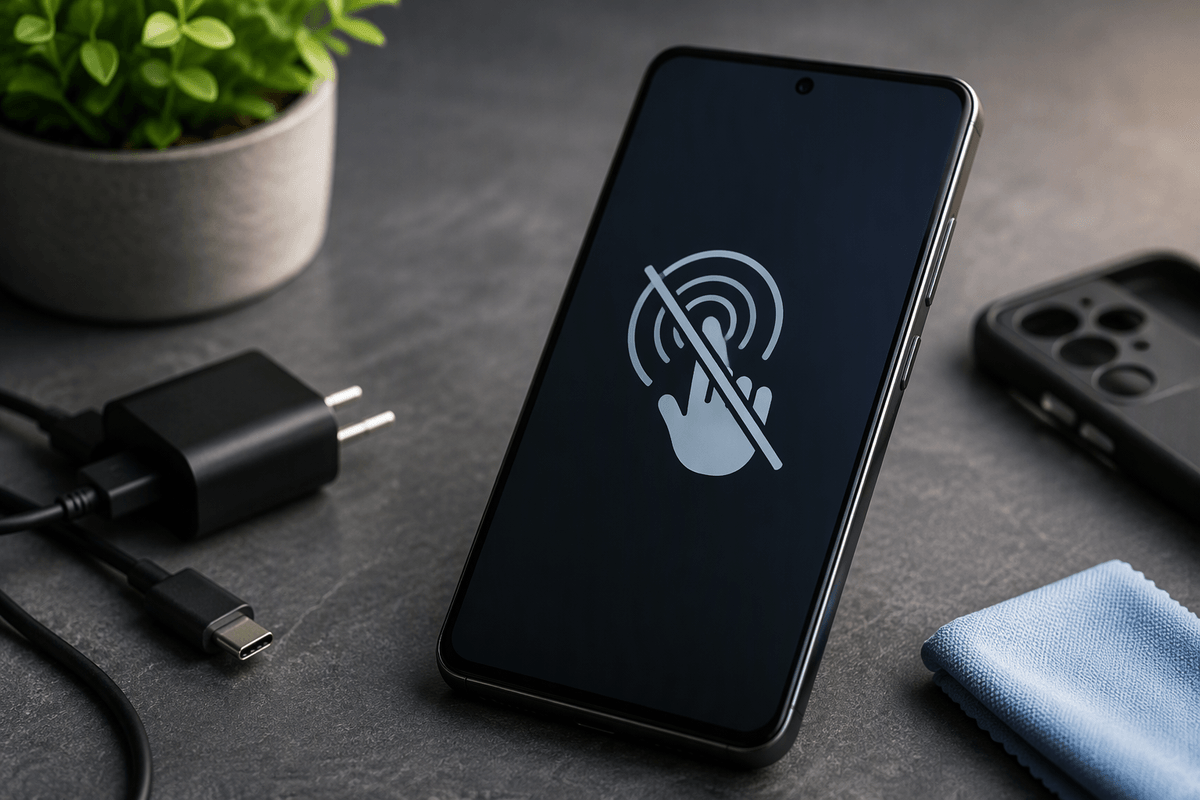
Before assuming your Samsung Galaxy needs repair, check whether the screen is fully unresponsive or simply delayed. Tap a few different areas, swipe from the edge, and press a physical button such as Volume Down. If the phone reacts with sound, vibration, or a notification even though touch does not work, the problem may be limited to the display or touch layer.
Also check whether only one app is stuck. Press the Home gesture or open the recent-apps screen if possible. Remove gloves, wipe away moisture, and disconnect chargers or accessories that may interfere with touch input. A screen that responds occasionally points toward a temporary software problem or a damaged touch surface. If there is no response from touch, buttons, vibration, or charging indicators, continue with the safest basic checks before attempting repair.
Start With the Fastest Safe Checks
Begin with the checks that cannot erase data or worsen a hardware problem. Remove the phone case and any screen protector, especially if the protector is cracked, lifting, or pressing against an edge. Clean the display with a soft, dry cloth and make sure your fingers are dry. Disconnect the charging cable, USB accessories, headphones, and any adapter. A damaged cable, moisture, or pressure from an accessory can make touch input unreliable.
Give the Galaxy a moment if it feels unusually warm or recently opened a demanding app. If the screen responds briefly, close the affected app and restart the phone normally through the power menu. Check whether the side and volume buttons still work, and connect the charger only after inspecting the port for lint, bent pins, or moisture. Avoid inserting metal objects or applying heat. If these checks restore touch response, back up important data soon; intermittent faults often return before the phone fails completely.
Try a Forced Restart When Nothing Responds
If the Galaxy still shows an image but ignores touch, perform a forced restart. Press and hold the Side button and Volume Down button together for about 7–10 seconds. Keep holding even if the power menu appears or the screen flickers; release them when the phone vibrates, the Samsung logo appears, or the device begins restarting. This procedure cuts through a temporary system freeze and does not erase your photos, apps, or other personal data.
If nothing happens, keep both buttons pressed for up to 20 seconds, then try again with the charger disconnected. Older Galaxy models may use the Power button instead of the Side button, while phones with removable batteries can sometimes be restarted by removing and reinserting the battery. Do not repeatedly press random button combinations, and do not attempt a factory reset at this stage. If the phone restarts but freezes again, note when it happens and which app or accessory was in use; repeated failures point to a software or hardware problem rather than a one-time lockup.
Work Out Whether Software Is Causing It
If the Galaxy works normally after a forced restart but becomes slow or unresponsive again, check whether a recently installed or updated app is involved. Think about what changed before the problem began, including launcher apps, screen filters, antivirus tools, accessibility services, or games that run heavily in the background. Uninstall the most likely recent app only if you can control the screen, then restart the phone and test it for a while.
Safe mode provides a clearer test because it starts the phone without most downloaded apps. Open the power menu, press and hold Power off, then choose Safe mode when the option appears. Use the phone for several minutes, open basic apps, and test touch response. If the problem disappears, a downloaded app is the likely cause; remove recent apps one at a time rather than deleting everything at once. If the screen still freezes in Safe mode, install any pending system update only when the phone is stable and backed up. Persistent freezing, repeated crashes, or touch failure in Safe mode points away from an ordinary app problem and toward damaged system software, the display assembly, or another hardware fault.
Look for Damage, Moisture, or Charging Clues
Inspect the Galaxy closely for clues that software troubleshooting cannot fix. Look for cracks, black spots, colored lines, flickering, raised glass, or a frame that has separated from the screen. A phone that was dropped may still display an image while its touch layer or internal connector is damaged. If the screen is lifting, stop pressing it and arrange service, since a swollen battery can push the display outward and create a safety risk.
Moisture can cause delayed or erratic touch response even when the phone appears mostly normal. Disconnect the charger, remove the case, and let the phone dry in a well-ventilated place. Do not use rice, a hair dryer, or sharp tools in the charging port. Check for a moisture warning and inspect the port without probing it. If the problem occurs only while charging, test a known-good Samsung-compatible charger and cable after the port is dry. Continued touch failure, heat, burning odor, corrosion, or rapid battery drain means you should stop charging and seek professional service rather than repeatedly restarting the device.
Protect Your Data Before Seeking Repair
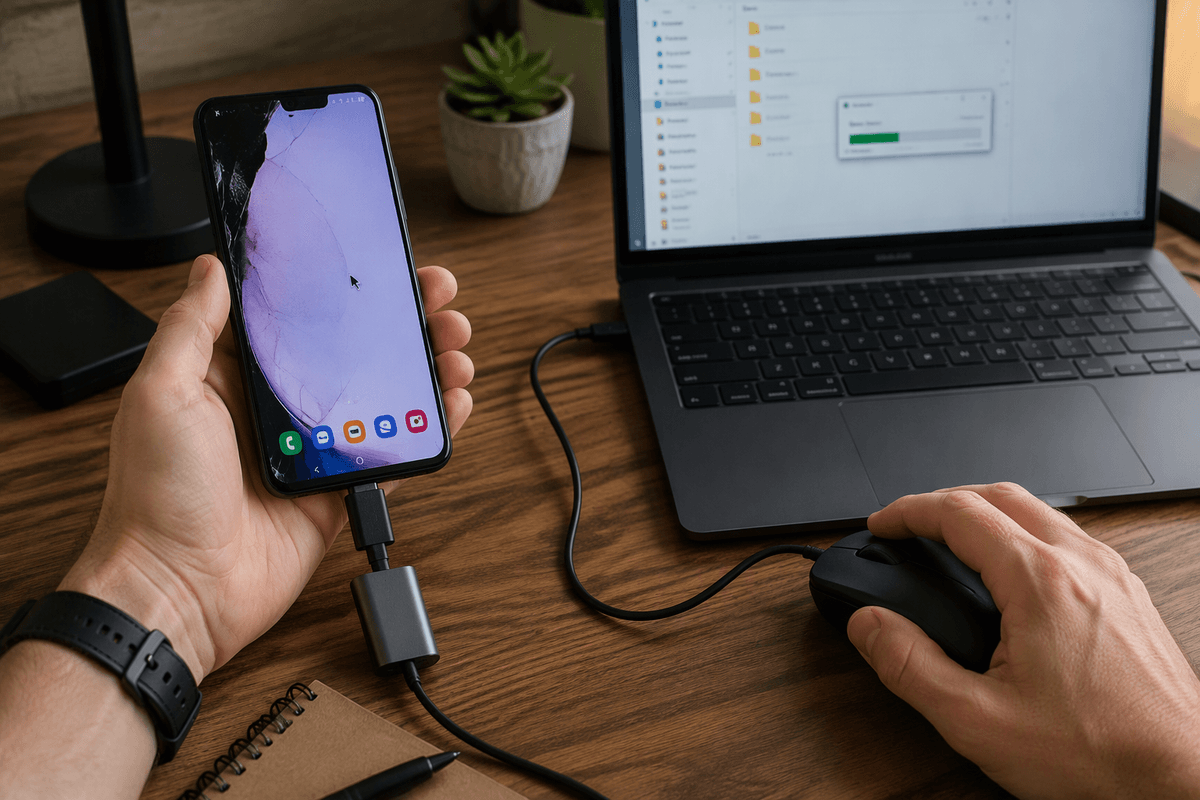
If the phone is stable enough to use, protect your data before handing it over. Back up photos, contacts, messages, notes, and authentication information to Samsung Cloud, Google, or a computer. Copy especially important files manually if the screen works only intermittently. Confirm that the backup completed by checking its date and contents from another device. If you use an authenticator app, banking app, or passkeys, make sure you know how to recover those accounts before the phone is reset or replaced.
When touch does not work but the display and buttons still respond, try connecting a USB mouse through a compatible USB-C adapter. A pointer may let you unlock the Galaxy, approve a backup, or transfer files. You may need the phone’s PIN rather than fingerprint recognition after a restart. Do not repeatedly guess the PIN, and do not give a repair shop your account password. Remove the SIM or microSD card if appropriate, and ask the technician whether a repair can be completed without erasing storage. If the device cannot be unlocked or backed up, explain that clearly before authorizing service; a factory reset may be necessary, and internal data may not be recoverable afterward.
Know When Professional Help Is the Better Choice
Professional help is the better choice when touch remains unreliable after a forced restart and Safe Mode, or when the phone shows cracks, lines, flickering, swelling, moisture damage, unusual heat, or charging problems. Arrange service promptly if the Galaxy cannot stay on long enough to back up, since repeated restarts can make data recovery harder. Stop using and charging it immediately if the battery appears swollen, the device smells burnt, or the frame is separating.
Use Samsung or a reputable authorized repair provider when possible, and describe the symptoms, recent drops, moisture exposure, and troubleshooting already completed. Ask for a diagnostic estimate and whether the repair may erase data. A screen replacement can be worthwhile on a newer phone, but on an older Galaxy, compare the repair cost with the price of a reliable replacement before approving the work.