When a Zap “fails” versus just doesn’t run
You’ll save a lot of time by first answering a simple question: did the Zap actually run and then fail, or did it never start? A “failed” Zap has a run record and usually shows an error on a specific step (for example, “authentication required,” “field is required,” or “not found”). A Zap that “didn’t run” often has no run at all because the trigger didn’t fire, the Zap was turned off, a filter/Path stopped it, or it hit task limits. These two situations look similar from the outside (“nothing happened”), but the fix lives in completely different places.
Start with Zap History: find the right run
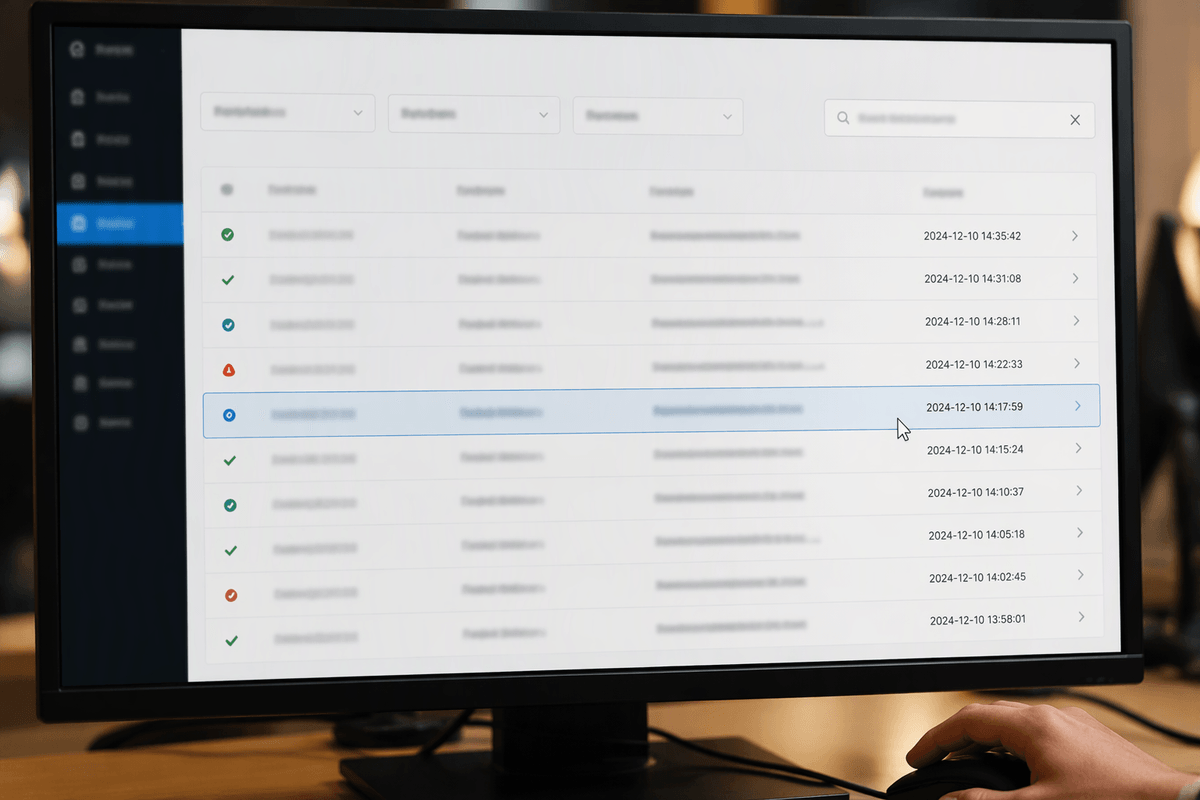
The fastest way to stop guessing is to open Zap History (sometimes shown as Task History) and locate the exact run that matches the moment things went wrong. Start by filtering to the specific Zap, then narrow the time window to when you expected it to fire. If you’re troubleshooting a missing record, search by a unique identifier you can recognize (an email address, order number, deal name, or Slack channel) so you’re not opening random entries.
Be careful with “almost the same” runs. A Zap might have multiple triggers, multiple Paths, or multiple items in a single trigger event, which can create several similar-looking runs close together. If the Zap runs frequently, pick the run closest to the complaint time and confirm the trigger data matches what the user or system actually produced. This one choice can save 30 minutes of chasing the wrong error.
Read the run timeline to spot the break
When you open a run, don’t jump straight into the error. Scan the run timeline from top to bottom and look for the first step that’s marked as errored, stopped, or skipped. Everything before that point usually worked, which means your trigger and early mappings are probably fine. Everything after it is often just collateral damage (Zapier can’t continue if a required step never produced an output).
Pay attention to the visual clues: a hard red error typically means the step tried to run and was rejected (bad input, missing required field, expired connection, “not found”). A gray “skipped” or “didn’t run” step often means a Filter, Path rule, or conditional logic prevented it from executing, which is different from failing. Also check whether the run shows multiple “loops” or repeated groups of steps; one bad item in a batch can fail while earlier items succeeded. The practical constraint is time: timelines get long, so train yourself to find the first break, not the loudest message.
Open the failing step and decode the message
Click into the first failing step and expand the details so you can see three things side by side: the exact error message, the input data Zapier sent to the app, and any response the app returned. The message is usually more literal than it looks. “Required field” almost always means your mapping produced a blank value (often because the field wasn’t present in this particular trigger), not that Zapier forgot the field. “Authentication required,” “invalid grant,” or “expired token” points to a connection issue, even if the step configuration hasn’t changed.
Look for the specific noun in the error: “record not found,” “unknown user,” “missing list,” “invalid ID.” That tells you what the app expected but didn’t recognize. Compare that to the inputs: is the ID empty, from the wrong step, or formatted oddly (extra spaces, different date format)? One practical snag is that some apps return vague “Bad Request” errors; in those cases, the inputs are your best clue, and removing optional fields one at a time is often faster than guessing.
Quick checks for the most common root causes
You’ll start seeing the same failure patterns over and over, and a few quick checks catch most of them. First, scan the failing step’s Inputs for blanks on anything that sounds required (name, email, ID, list, pipeline, amount). A mapping can look “filled” in setup but resolve to empty in a specific run because that field wasn’t included in the trigger for this record. Second, treat anything mentioning authentication, invalid grant, expired token, or permission as a connection problem: reconnect the account, then re-run the failed task. Third, “not found” usually means the step is searching with the wrong identifier (using a name instead of an ID, or an ID from the wrong app/environment), or the record was deleted or never existed.
Then check for formatting and hidden characters. Dates, phone numbers, currencies, and multi-select fields can fail if the app expects a specific format. Trim spaces on IDs and emails, and watch for line breaks copied from forms. Finally, if steps show as skipped, verify Filters and Paths against the actual trigger data from that run. The constraint: some fixes require changing field mappings, which can affect future runs, so test on a copy or use a single known record before turning the Zap loose again.
Isolate the issue with tests, replays, and minimal inputs

When the error isn’t obvious, narrow the problem by controlling the data. Start by replaying the exact failed run (or re-running the task if your plan allows it) so you’re not debugging a moving target. If the Zap succeeds on replay, compare the trigger payloads between the failed and successful runs; the difference is often a missing field, a changed status, or an empty lookup result that your Zap assumes will exist.
If it still fails, reduce variables: temporarily edit the failing action to send the smallest set of required fields and a single, known-good value for each (for example, hard-code a test email or a fixed pipeline ID). Once it works, add fields back one at a time until it breaks again. For search steps, test with the exact identifier from the failed run and confirm the search actually returns a result before you use its output downstream.
The practical cost is that tests can create real records and notifications. Use a sandbox, a clearly labeled “TEST” tag, or a temporary destination (like a private Slack channel), and clean up the test data afterward.
Prevent repeat failures with monitoring and guardrails
Once the Zap is working again, add a few guardrails so the same edge case doesn’t break it next week. Turn on Zapier’s built-in notifications for errors, and route them to where you’ll actually see them (email or a dedicated Slack channel) so failures don’t sit unnoticed. Add Filters and Paths to stop bad inputs early, and use a fallback value (or a Formatter step) when a field is sometimes missing or inconsistently formatted. If a lookup can return nothing, handle that branch explicitly instead of letting the next step crash. The trade-off is extra steps and tasks, but it’s cheaper than repeated firefighting.